Knowledge base
Inviting event users to your organiser profile
Created on 06 Feb 2026, Updated 26 Oct 2026 16:36
Inviting event admin users
Use invite links to add team members to your organiser profile or events without manual account entry.
How invite links work
An invite link is a secure, shareable URL that lets users join your organiser profile or event automatically after they sign in or create an account on this platform.
Account-level vs event-level invites
| Type | Scope | Use case |
|---|---|---|
| Account-level | Entire organiser profile | Staff who manage all your events |
| Event-level | Single event only | Event-specific coordinators, volunteers, or crew |
Creating an invite link
- Navigate to Settings > Users (for account-level) or Event overview > Tools > Event users (for event-level)
- Click Invite link
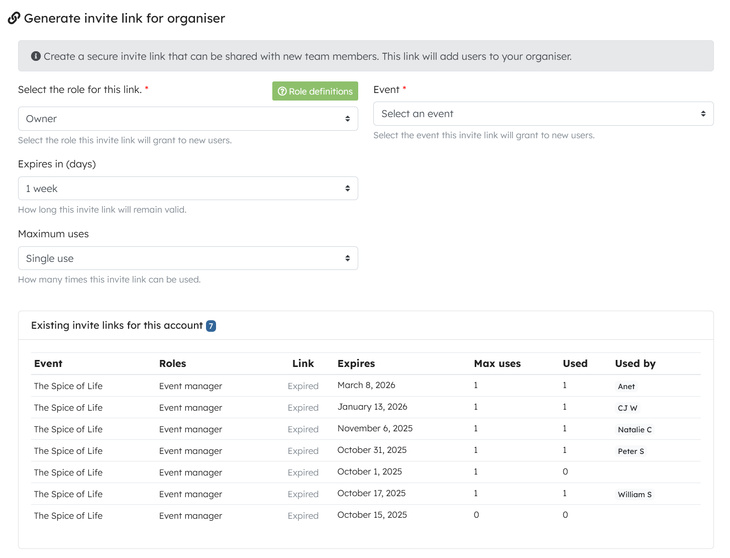
- Configure the invite:
- Roles: Select what permissions the invitee will have (owner, event manager, coordinator)
- Expiry: Set how long the link remains valid (default is 7 days)
- Usage limit: Set how many people can use this link (default is 1)
- Click Generate link
Copy the link and share it with your team member

Managing invite links
The invite links table shows:
- Roles: What permissions are granted
- Expires: When the link stops working
- Max uses: Total allowed uses
- Used: How many times it's been used
- Used by: Who accepted the invite
Actions
| Action | When to use |
|---|---|
| Copy link | Share the invite with another person |
| Revoke | Cancel an active link before it expires or gets used |
What happens when someone accepts
- They click the invite link and see an acceptance page showing your organiser or event details
- They choose to either:
- Sign in to an existing account, or
- Create a new account
- After authentication, they're automatically added to your organiser profile or event with the assigned roles
- Both you and the new user receive confirmation emails
Security features
- Unique tokens: Each link contains a cryptographically secure token
- Expiry dates: Links automatically expire after the set period
- Usage limits: Control how many people can use each link
- Revocation: You can cancel links at any time before they're used
- Audit trail: The system tracks who created each link and who used it
Troubleshooting
| Issue | Solution |
|---|---|
| Link expired | Generate a new invite link |
| Usage limit reached | Create a new link with a higher limit |
| User didn't receive link | Copy the link and send it directly via your preferred method |
| Need different roles | Revoke the old link and create a new one with correct roles |
Best practices
- Use single-use links for individual invitations
- Use multi-use links for inviting groups (e.g., all team leads)
- Set shorter expiry periods for sensitive roles
- Revoke unused links when team members change
- Always verify the assigned roles before generating a link
Related articles
Getting paid. How do I access funds from my events
You can withdraw funds both before and after your event
You can withdraw funds both before and after your event
30 Apr 2025
Managing locations for your organiser
This guide will show you how to manage the locations used for your events.
This guide will show you how to manage the locations used for your events.
08 Apr 2025
Topics