Knowledge base
Ticket type custom messages
Created on 10 Dec 2025, Updated 12 Oct 2026 21:52
You can add a short custom message to each ticket type. This message appears on tickets and order receipts, and is a simple way to give buyers extra information or a friendly note.
What is a custom message?
A custom message is a short block of text that you attach to a specific ticket type.
You might use it to:
- Remind people about arrival or check‑in times
- Explain what is included with that ticket
- Say thank you for a donation
- Share important conditions or instructions
Examples:
- "Please arrive 15 minutes before the start time for check‑in."
- "This ticket includes one free drink on arrival."
- "Thank you for your donation – your support helps fund our community projects."
This field is optional. If you leave it blank, nothing extra is shown.
Where does the message appear?
When you add a custom message to a ticket type, it can appear in:
-
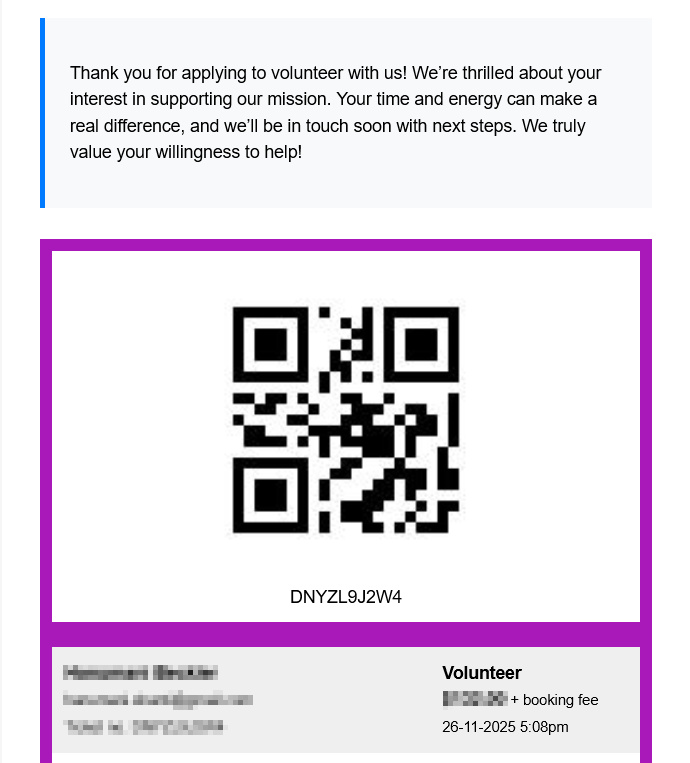
Ticket emails and printable tickets
Buyers see the message above the ticket details.
-
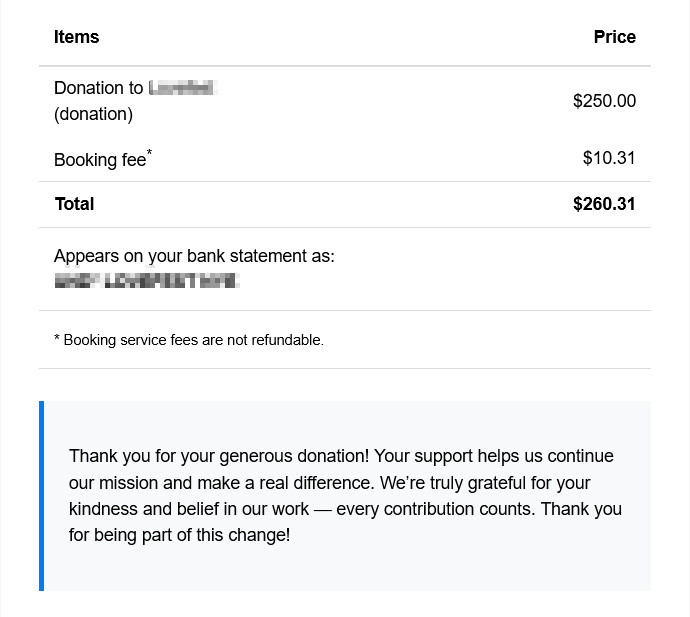
Order receipts
If an order item uses a ticket type with a custom message (for example, a donation), the message is also shown on the receipt.
The message is always linked to the ticket type, not the whole event. This means different ticket types can show different messages.
How to add or edit a custom message
-
Open your event
Go to your "My events" area and open the event you want to edit. -
Go to Ticket types
Open the list of ticket types for that event. -
Edit a ticket type
Click the ticket type you want to update (for example, "General admission", "VIP", or "Donation"). -
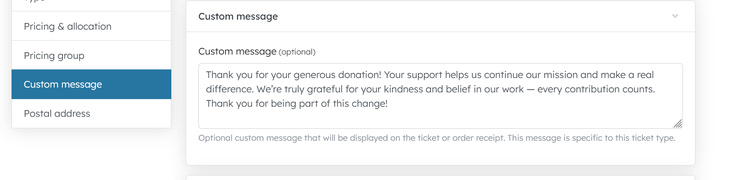
Open the Custom message section
On the left‑hand side menu, click Custom message.
The page will scroll to the custom message field. -
Write your message
- Type your text into the custom message box.
- You can write a few sentences or a short paragraph.
- Keep it between roughly 10 and 255 characters. If it is too short or too long, the system will show a validation message.
-
Save your changes
Click Save / Update on the ticket type form.
New tickets and receipts that use this ticket type will now include your custom message.
Changes to the custom message do not change old emails that have already been sent. They will apply to new orders and tickets created or sent after you save.
Ideas for using custom messages
Here are some common ways organisers use this feature:
Event instructions
- "Show this ticket at the main gate on arrival."
- "This ticket is valid for entry between 6:00pm and 7:00pm only."
- "Please check in at the registration desk on Level 2."
Donation thank‑you notes
- "Thank you for supporting our fundraising campaign."
- "Your donation helps us run free workshops for young people."
- "We appreciate your generosity – every contribution makes a difference."
Special conditions
- "Seats are unreserved – arrive early for the best choice."
- "This ticket is non‑refundable except if the event is cancelled."
- "This ticket does not include food or drinks."
Accessibility or contact details
- "For accessibility requirements, please email us."
- "If you have any questions about this ticket, contact us"
Tips and best practice
-
Keep it short and clear
Aim for one to three sentences. Most people skim-read emails. -
Make it ticket‑specific
Use the custom message for information that applies only to that ticket type. For event‑wide messages, continue using your event description or event email text. -
Use plain language
Write as if you are speaking directly to your attendee. Avoid internal or technical terms. -
Avoid sensitive information
Remember that everyone who buys that ticket type will see this message.
If you want to change how you use custom messages, you can edit the text at any time by returning to the Custom message section when editing the ticket type.
Related articles
add a custom message to an access code that will be shown to customers on the event page
We've made some significant updates to improve your ticketing experience.
Packages allow event organisers to bundle multiple ticket types together and create discounts for customers