Volunteer team lead assignments guide
Created on 27 Mar 2026
Team leads assignments guide
This guide explains how to assign users to volunteer teams using the Team leads page and understand the different role types in the system.
Overview
The Team leads page manages team assignments for users within events. It handles volunteer position assignments, creating a comprehensive permission system for volunteer management.
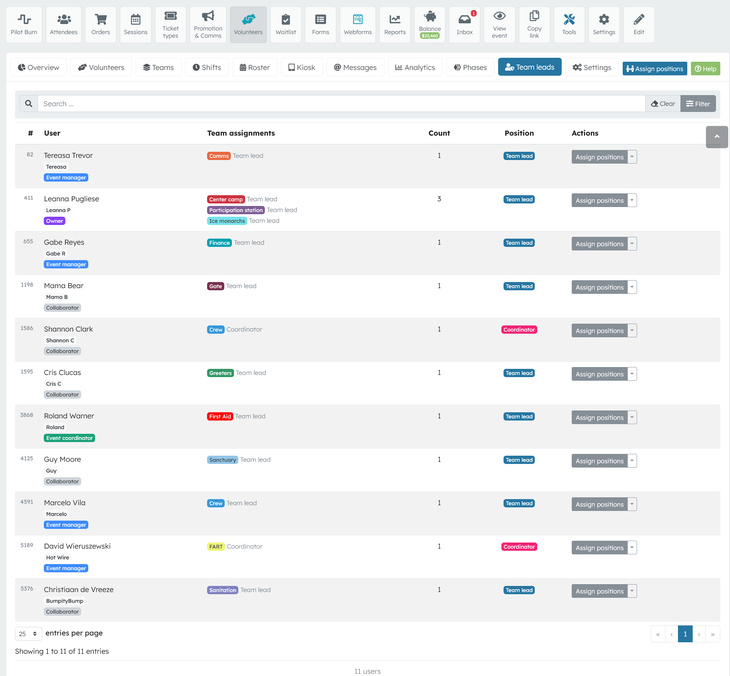
Accessing team assignments
To access team assignments:
- Navigate to your event dashboard
- Go to Volunteers section
- Select Team leads or Manage team leads
- You must have the
event coordinatororganiser level permission to access this feature
Understanding role types
Organiser roles
Organiser roles are assigned in your organisers
Users
section:
| Role | Description | Access level |
|---|---|---|
| Owner | Organiser ownership | Organiser-level |
| Event manager | Event management | Organiser-level |
| Event coordinator | Event coordination | Organiser-level |
| Volunteer lead | Special role for team management | Volunteer access |
| Collaborator | Limited collaboration | Volunteer access |
Volunteer positions
Volunteer positions define team-specific roles and responsibilities:
| Position | Level | Description | Team access |
|---|---|---|---|
| Participant | 1 | Basic volunteer role | Assigned teams only |
| Crew member | 2 | Enhanced volunteer | Assigned teams only |
| Team lead | 3 | Team management role | Assigned teams only |
| Coordinator | 4 | Cross-team management | All teams |
Key role combinations
Team lead configuration
For a user to be a Team Lead:
Minimum required organiser role:
Volunteer Lead
Required volunteer position:
Team Leads- Must be assigned to one or more specific teams
Result: The user can only manage volunteers and teams they are specifically assigned to.
Coordinator configuration
For a user to be a Coordinator:
Minimum required organiser role:
Volunteer Lead
Required volunteer position:
Coordinator
Result: The user can manage ALL teams across the event, regardless of specific team assignments.
Access differences: Coordinator vs Team lead
Coordinator access
- ✅ Can view and manage ALL volunteer teams
- ✅ Can assign volunteers to any team
- ✅ Can modify team assignments across all teams
- ✅ Has cross-team visibility and control
- ✅ Can access volunteer data for all teams
Team lead access
- ✅ Can only view and manage ASSIGNED teams
- ✅ Can assign volunteers only to their assigned teams
- ✅ Can modify assignments within their teams only
- ❌ Cannot access or manage other teams
- ❌ Limited to their specific team scope
Assigning users to teams
Step-by-step process
-
Navigate to Team leads
- Go to Event Dashboard → Volunteers → Team leads
-
Select user
- Use the search bar to find the user
- Filter by name, email, or current team assignments
-
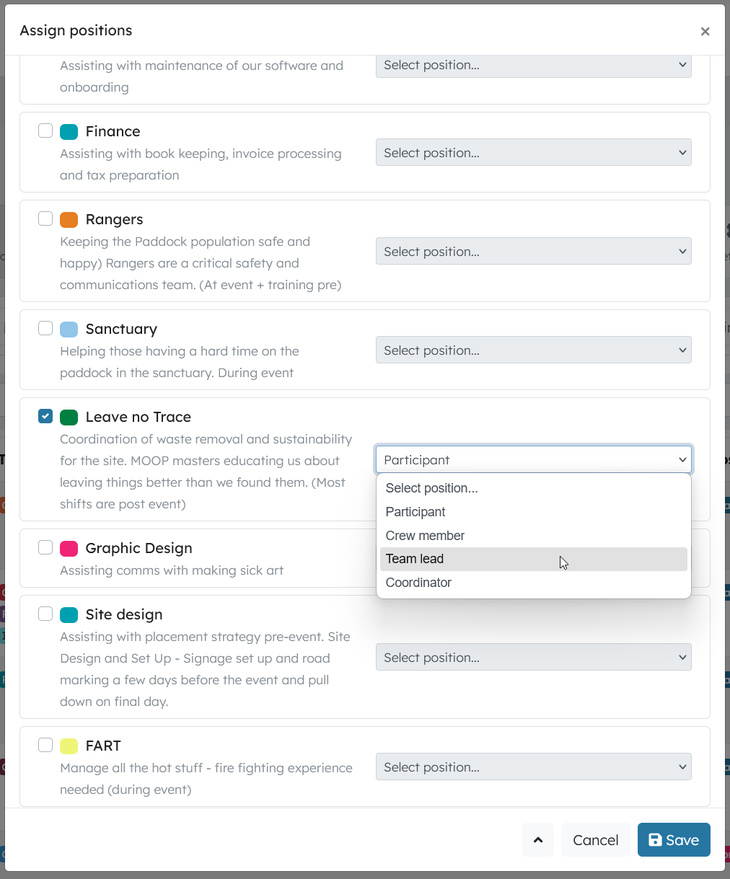
Assign teams and positions
- Click "Assign positions" for the selected user
- Choose from available teams
- Select the appropriate position type:
- Participant for regular volunteers
- Crew Member for experienced volunteers
- Team Lead for team-specific managers
- Coordinator for cross-team managers
-
Save assignments
- Review the assignments
- Click "Save" to apply changes
Required permissions
To assign users to teams, you must have:
- Organiser-level access to the event
- Appropriate organiser role (typically Event Coordinator or higher)
Managing team assignments
Viewing current assignments
The team leads table shows:
- User information and organiser roles
- Current team assignments with position badges
- Assignment count per user
- Highest position level per user
Modifying assignments
-
Update assignments
- Click "Assign positions" to modify existing assignments
- Add or remove team assignments
- Change position types as needed
-
Remove all assignments
- Click "Remove positions" to clear all team assignments
- Confirm the removal action
- This removes all team associations for the user
Filtering and search
Use filters to find specific users:
- Position type filter: Filter by volunteer position level
- Teams filter: Filter by specific team assignments
- Search: Search by name, email, or team names
Best practices
Setting up team leads
-
Grant organiser role first
- Assign
Volunteer Leadorganiser role to the user - This provides the base permission for volunteer management
- Assign
-
Assign team lead position
- Assign
Team Leadvolunteer position - Specify which teams they will manage
- Start with one team, expand as needed
- Assign
-
Verify access
- Ask the user to test they have access to their assigned teams
- Confirm they cannot access other teams
Setting up coordinators
-
Grant organiser role
- Assign
Volunteer Leador higher organiser role - This enables team management permissions
- Assign
-
Assign coordinator position
- Assign
Coordinatorvolunteer position - No specific team assignment needed (access is global)
- Assign
-
Test cross-team access
- Verify access to all teams
- Confirm ability to manage across team boundaries
Common scenarios
New team lead setup:
Organiser Role: Volunteer Lead
Volunteer Position: Team Lead
Team Assignment: Specific team(s)
Access: Assigned teams only
New coordinator setup:
Organiser Role: Volunteer Lead
Volunteer Position: Coordinator
Team Assignment: Not required
Access: All teams globally
Regular volunteer:
Organiser Role: Member (or none)
Volunteer Position: Participant
Team Assignment: Specific team(s)
Access: Assigned teams only
Troubleshooting
User cannot access teams
Check organiser role:
- Verify the user has
Volunteer Leadorganiser role - Without this role, team management permissions are denied
Check volunteer position:
- Ensure appropriate volunteer position is assigned
- Team Lead requires team-specific assignments
- Coordinator provides global access
Check team assignments:
- Team Leads must be assigned to specific teams
- Verify team assignments match intended access scope
Permission issues
Missing permissions error:
- User lacks
edit volunteer teamspermission - Contact an Event Manager or Owner for access
Access denied to specific teams:
- Team Lead trying to access unassigned teams
- Either assign additional teams or upgrade to Coordinator
Global access needed:
- Change Team Lead to Coordinator position
- This provides cross-team management capabilities
Support
For additional help with team assignments:
- Check this guide for common scenarios
- Review user permissions in Organiser user settings
- Contact your Event Manager or Organiser Owner
- Submit a support ticket for technical issues
Related articles
Learn how to view and manage individual volunteer details, shift assignments, preferences, and communications.
Learn how to send messages to volunteers and how volunteers can communicate through their portal.