Knowledge base
Sending messages to volunteers
Created on 07 Dec 2025, Updated 21 Oct 2026 06:44
Volunteer messages
The messaging system allows organisers to communicate with volunteers and enables volunteers to send messages back through their personal portal.
Volunteers don't need a user login to access the portal. They are sent a generated private link.
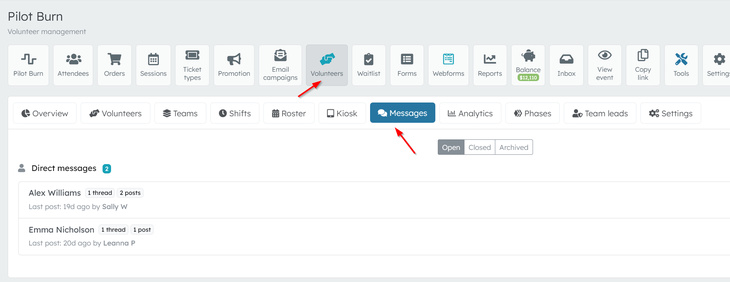
Message threads
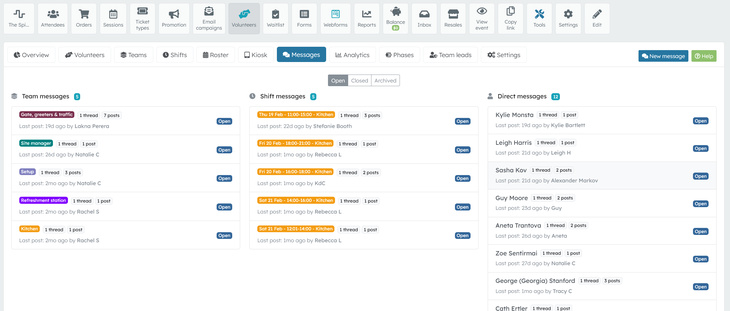
Message types
Team messages
Send a message to all volunteers assigned to a specific team. Useful for:
- Team briefings and updates
- Role-specific instructions
- Coordination within a team
Shift messages
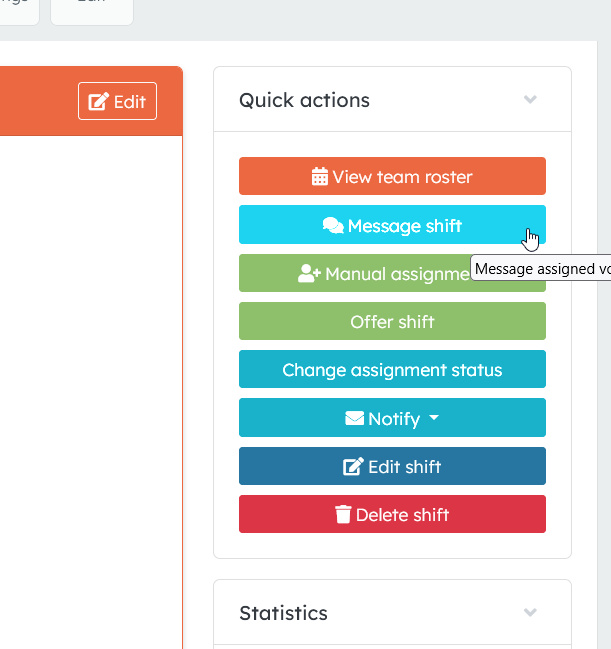
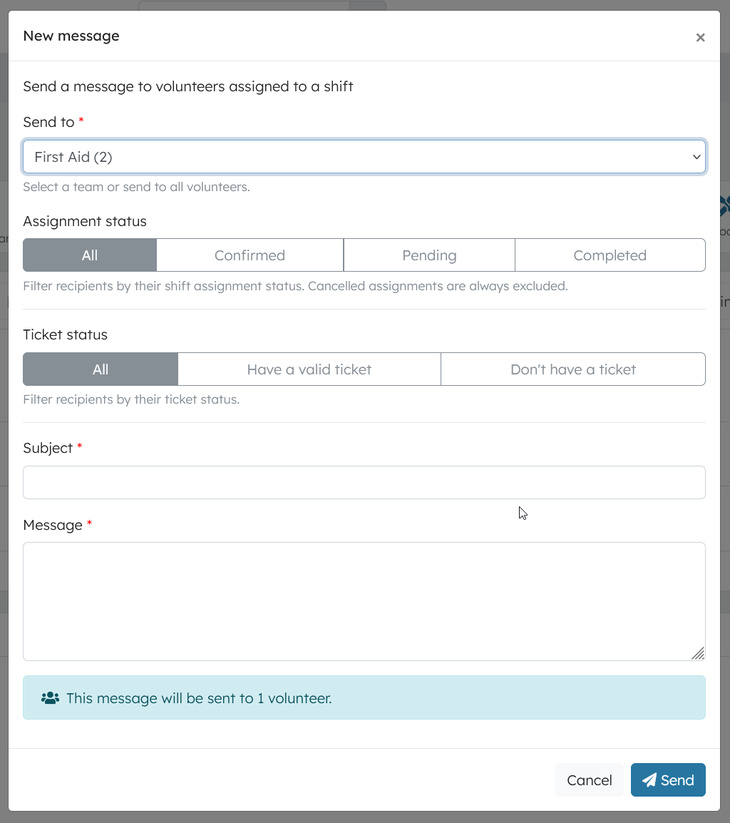
Some conversations are linked to a specific shift. This is useful when the message is only relevant to people working that shift (for example, a location change or last-minute instructions). You can send a message to people that are assigned to a shift from the shifts view page.
Event broadcasts
Send a message to all volunteers across the entire event. Requires broadcast permission. Use for:
- General announcements
- Event-wide updates
- Important reminders
Direct messages
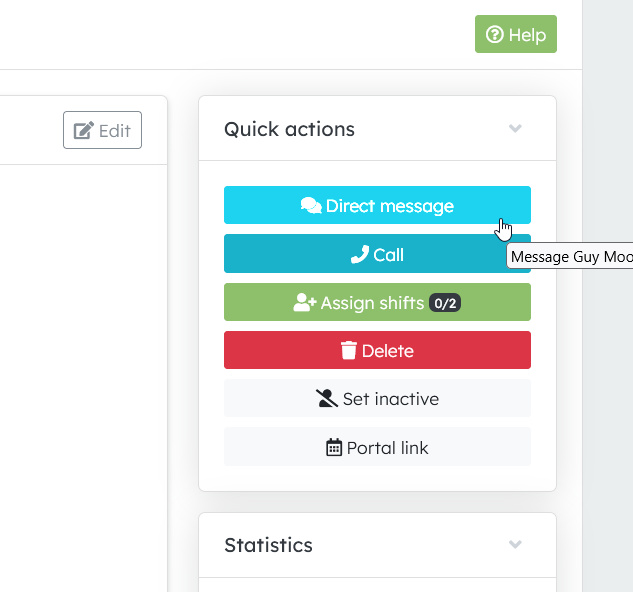
One-on-one conversations with individual volunteers. These appear in the volunteer's portal and allow two-way communication. You can send a direct message to a volunteer from their volunteer page
Sending broadcasts
Creating a new message
- Navigate to Volunteers → Messages within your event
- Click New message
- Select recipients:
- Choose a specific team, or
- Select All volunteers (if you have broadcast permission)
- Filter by assignment status (optional):
- All – Everyone with a shift assignment
- Confirmed – Only volunteers who have confirmed
- Pending – Only volunteers awaiting confirmation
- Completed – Only volunteers who have completed shifts
- Enter a subject and message
- Click Send
The system shows how many volunteers will receive the message before you send.
Previewing recipient count
As you select a team (or all volunteers) and choose an assignment status filter, the system can show a preview of how many volunteers match.
Use this to:
- Confirm you’ve selected the right audience
- Avoid sending to more people than intended
- Target only confirmed volunteers for final instructions
Viewing message threads
The messages page groups conversations so you can find them quickly:
- Team messages – Organised by team
- Shift messages – Linked to a specific shift
- Event messages – Messages sent to all volunteers
- Direct messages – One-on-one conversations
Click any group to view the message threads, then open a thread to read and reply.
Replying to messages
- Click on a message thread to open it
- Type your reply in the text box
- Click Send
Volunteers receive a notification when you reply.
Visibility and permissions
What you can send and what you can see depends on your access:
- Team messages are available for teams you have access to.
- Event broadcasts require specific permission.
- Direct messages are used for individual conversations with a volunteer.
Volunteer portal (for volunteers)
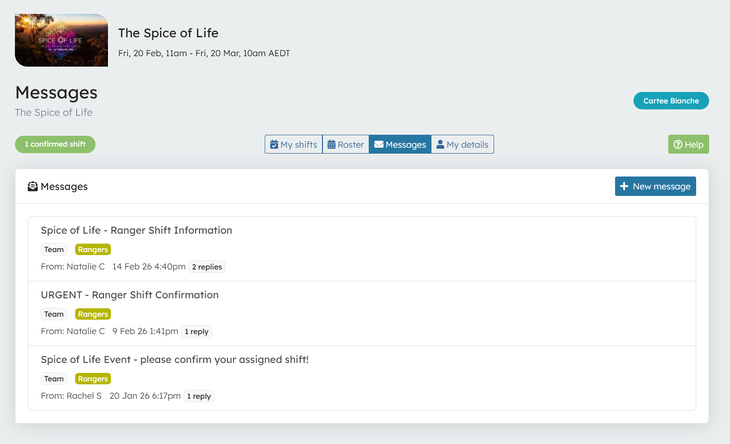
Volunteers can access their messages through their personal portal link.
Viewing messages
- Open your volunteer portal link (sent via email)
- Click Messages in the navigation
- View all messages from organisers
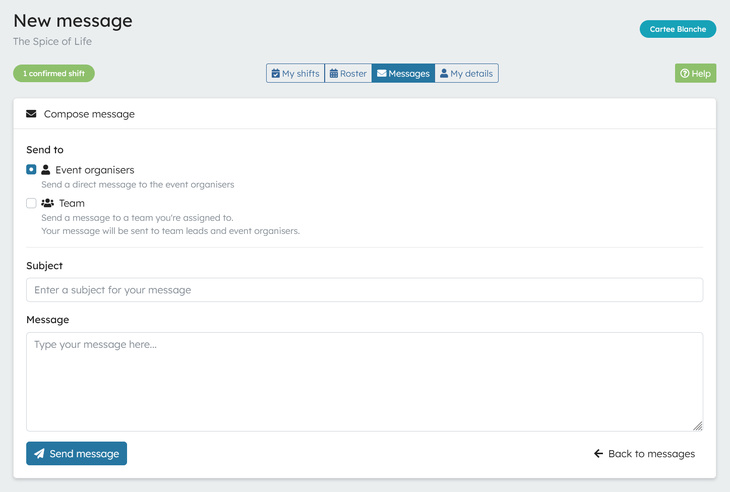
Sending a new message
- Click New message in the portal
- Choose message type:
- Direct message – Send to event organisers
- Team message – Send to your team (visible to team leads)
- Enter a subject and message
- Click Send
Replying to messages
- Open a message thread
- Type your reply
- Click Send
Organisers are notified when you reply.
Tips
- Use team messages for team-specific info – Keeps communication relevant
- Use broadcasts sparingly – Reserve for important event-wide announcements
- Check assignment status – Filter to reach only confirmed volunteers for final instructions
- Encourage portal use – Remind volunteers they can message back through their portal
- Review direct messages – Check for volunteer questions or concerns regularly
Related articles
This guide walks you through the complete workflow of building and managing your volunteer roster
The Volunteer Management System provides a comprehensive solution for organising, managing, and coordinating volunteers for your events.
Learn how to organise volunteers into teams and roles, and manage team availability for your events.
Here's your 2-minute guide to smarter rostering - when to assign, how volunteers get notified, and why waiting 1-2 weeks before your event saves everyone time. Perfect for team leads!
Learn how to create shift schedules that automatically generate multiple volunteer shifts based on operating hours and shift duration.