Knowledge base
Allow customers to refund their orders and tickets
Created on 20 May 2026, Updated 09 Oct 2026 07:57
Self-service refunds for event organisers
Self-service refunds let your customers request refunds directly from their orders page, without needing to contact you. You control when and how refunds are available through your event settings.
When to use self-service refunds
Self-service refunds work well when you want to:
- reduce the number of refund requests you handle manually
- give customers a quick and easy way to get their money back
- set clear rules about when refunds are allowed
Enabling self-service refunds
To turn on self-service refunds for your event:
- Open your event.
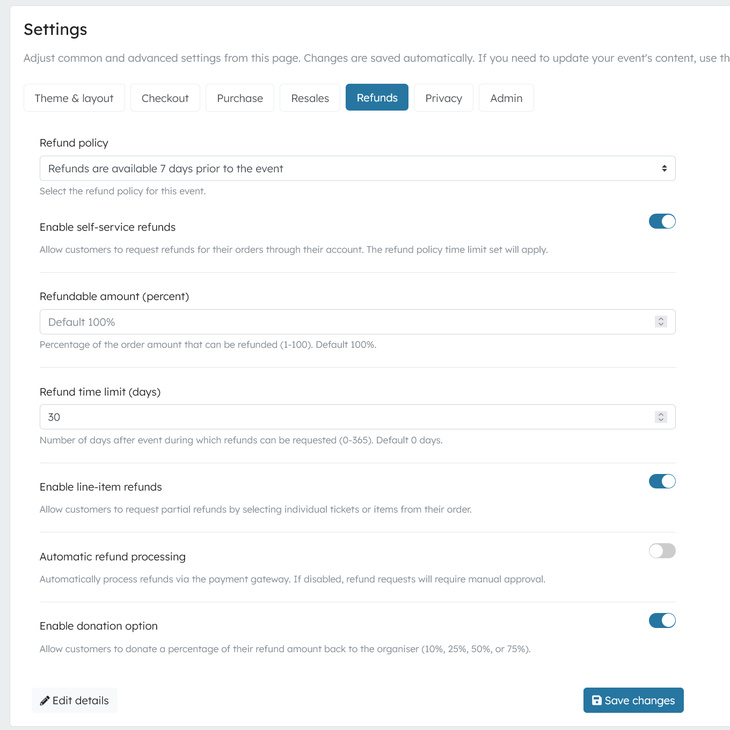
- Go to Settings > Refunds.
- Turn on Enable self-service refunds.
Once enabled, customers can request refunds from their orders page.
Refund settings
You can customise how refunds work for your event.
Refundable amount (percent)
Set the base refund amount as a percentage of the original order amount that can be refunded. For example:
- 100% – full refund (default)
- 80% – customers receive 80% of their order value
- 50% – customers receive half of their order value
This is useful if you want to keep a portion of the ticket price to cover costs.
Refund time limit (days)
Set how many days after the event ends that customers can still request a refund. For example:
- 0 – no refunds after the event ends (default)
- 7 – customers have 7 days after the event to request a refund
- 30 – customers have 30 days after the event
This setting only applies after the event has finished. Before the event, your refund policy (set in the event details) determines when refunds are allowed.
Refund policy
Your event's refund policy controls when customers can request refunds before the event starts. Options include:
- No specified policy – refunds allowed any time before the event
- 1 day prior – refunds must be requested at least 1 day before
- 7 days prior – refunds must be requested at least 7 days before
- 14 days prior – refunds must be requested at least 14 days before
- 1 month prior – refunds must be requested at least 1 month before
- No refunds – refunds are not allowed (unless the event is cancelled)
Line item refunds
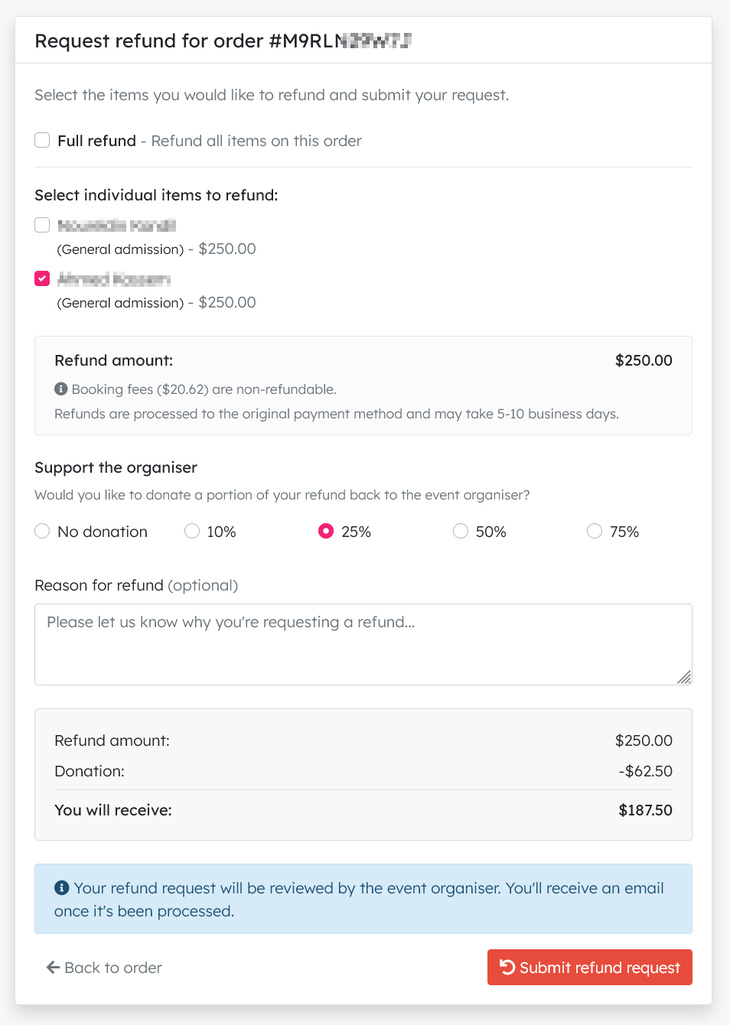
When enabled, customers can choose which items on their order to refund, rather than refunding the entire order. This is useful for orders with multiple tickets.
Donation option
You can give customers the option to donate part of their refund back to you. This is a nice way to let supporters help cover your costs when they can't attend.
Customers can choose the percentage they would like to donate: 10%, 25%, 50% or 75%
What the customer sees
Auto-process refunds
When enabled, approved refunds are processed automatically without you needing to review them. The refund goes straight back to the customer's original payment method.
When disabled, refund requests go into a queue for you to review and approve or reject.
Reviewing refund requests
If auto-process is turned off, you'll need to review refund requests manually.
- Go to your event.
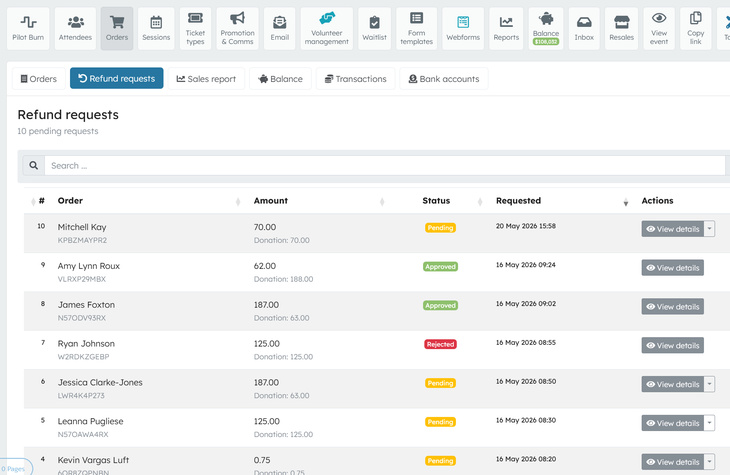
- Open Orders > Refund requests.
- You'll see a list of pending requests.
For each request, you can:
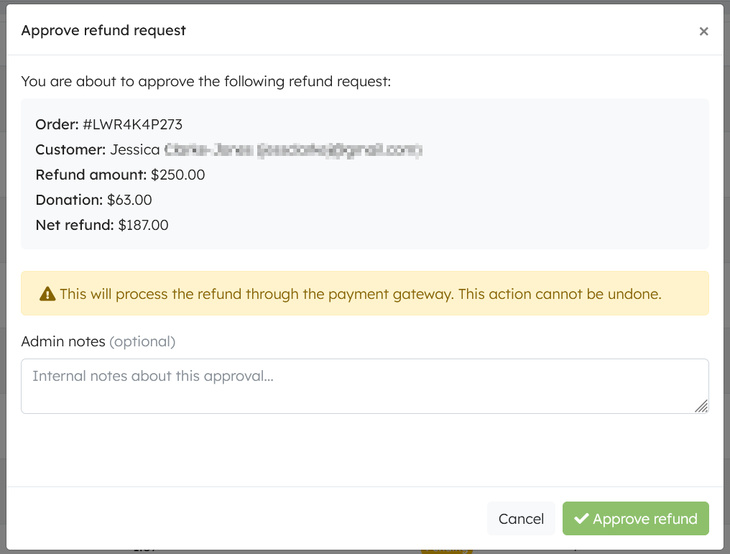
- Approve – process the refund and return the money to the customer
- Reject – decline the request (you can add a reason)
Customers receive an email when their request is approved or rejected.
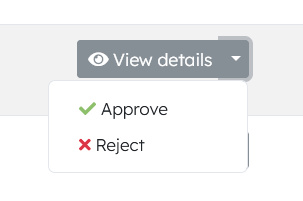
Approve a request
Cancelled events
If you cancel your event, customers can request refunds regardless of your normal refund policy or time limits. This ensures customers can get their money back when an event doesn't go ahead.
Tips
- Be clear about your refund policy in your event description, so customers know what to expect.
- If you set a refundable amount below 100%, explain why (for example, to cover event or administrative costs).
- Check your refund requests regularly if auto-process is turned off.
- Consider enabling the donation option to give customers a way to support you even when requesting a refund.
Related articles
This guide explains the payment methods available on the platform, how fees are calculated, and who pays them.
This guide explains how to request a refund and what to expect