Knowledge base
Cancel or reschedule an event
Created on 24 Aug 2025, Updated 30 Oct 2026 21:53
If you need to change the status of your event, you can do so from the action menu on your events overview page.
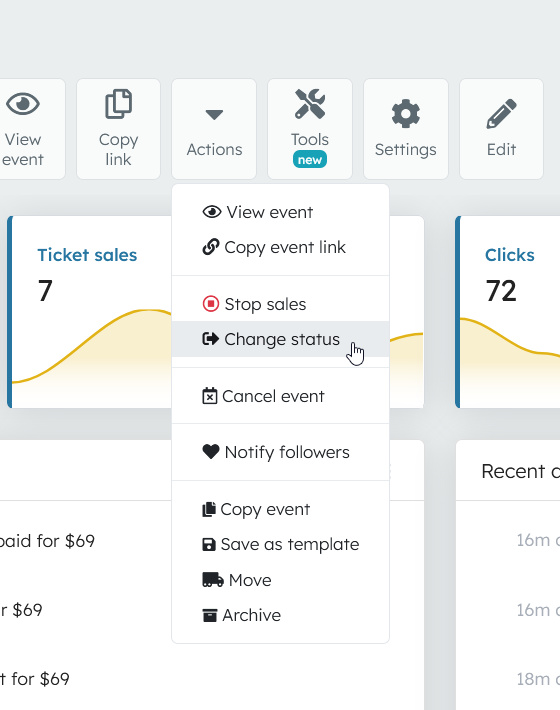
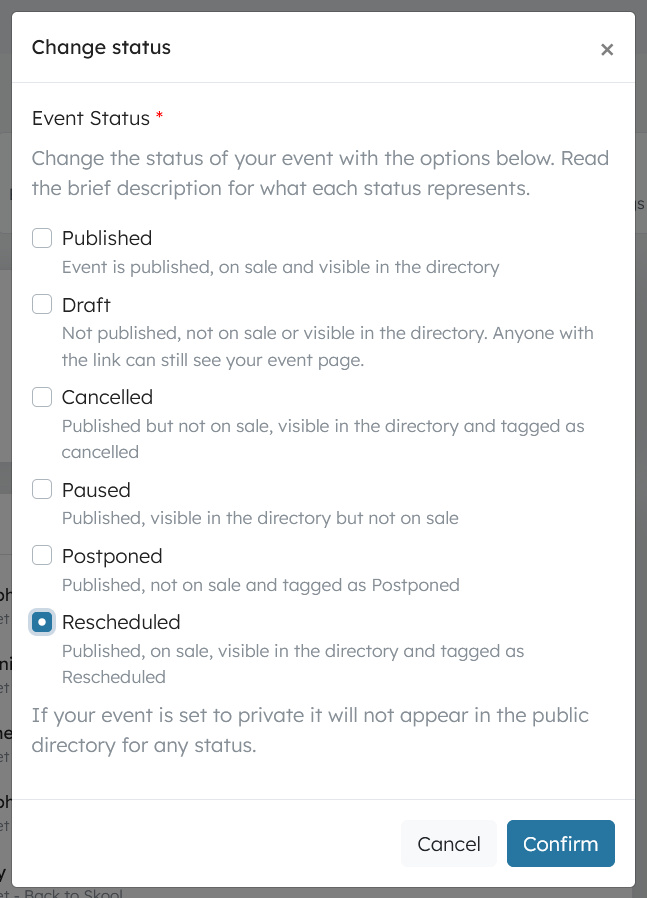
To reschedule without refunds, you can change the status to rescheduled, then change your event dates by editing your session dates.
You may issue any refund requests from the orders page of your event
To fully cancel, use the cancel event function. Depending on your account balance, you may be able to issue refunds for all of your customers orders.
If you prefer to issue refunds individually, choose the cancel without refund option
Related articles
Incident reports
Record when something goes wrong with a person at your event, and make sure your team, and other organisers on the platform, are aware of it
Record when something goes wrong with a person at your event, and make sure your team, and other organisers on the platform, are aware of it
16 Oct 2026
Event links page
A single, mobile-friendly page that brings together the most useful links for your event in one place
A single, mobile-friendly page that brings together the most useful links for your event in one place
23 Aug 2026
Payment methods and fees
This guide explains the payment methods available on the platform, how fees are calculated, and who pays them.
This guide explains the payment methods available on the platform, how fees are calculated, and who pays them.
16 Aug 2026
Template events
Template events are full copies of an event that you can reuse as a starting point for new events.
Template events are full copies of an event that you can reuse as a starting point for new events.
01 Aug 2026
Topics