Knowledge base
Template events
Created on 01 Aug 2026, Updated 21 Oct 2026 06:44
Template events
Template events are full copies of an event that you can reuse as a starting point for new events. A template event is a real event that you can explore and edit before using it.
When you save an event as a template event, a complete copy is created with the status of Template. You can then browse, explore and edit the template event just like any other event. When you are happy with the setup, you can create a new event from it, and update the template event as needed.
When to use template events
Use template events when you:
- run similar events regularly (for example, a monthly meetup or annual festival)
- want to preview and fine-tune the template before creating a new event
- need your team to create events in a consistent way
- want to include advanced items like webforms and email campaigns in your templates
Template events can help you:
- save time setting up repeat events
- reduce mistakes or missed settings
- keep your events looking and behaving the same way
- let your team create events without needing full setup access
Saving an event as a template event
You can save any existing event as a template event.
From the event tools page
- Open your event.
- Go to the Tools page for that event.
- In the tools page, find Save as template.
- Click Save as template.
- A form will open with template details and item selection.
From the tools menu on your event
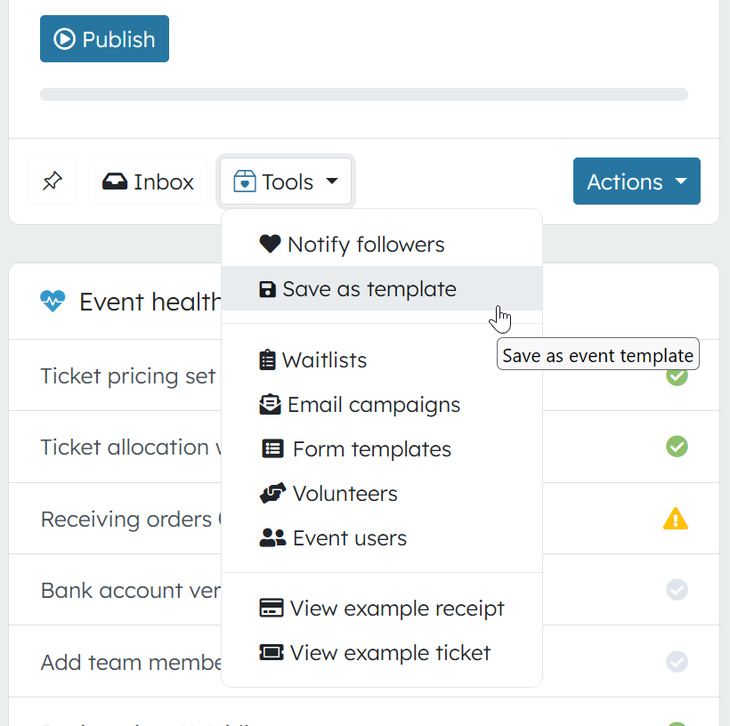
- Find your event in the My events list, click manage.
- Click the Tools button for that event.
- Choose Save as template.
- Complete the form as described below.
Filling in the template form
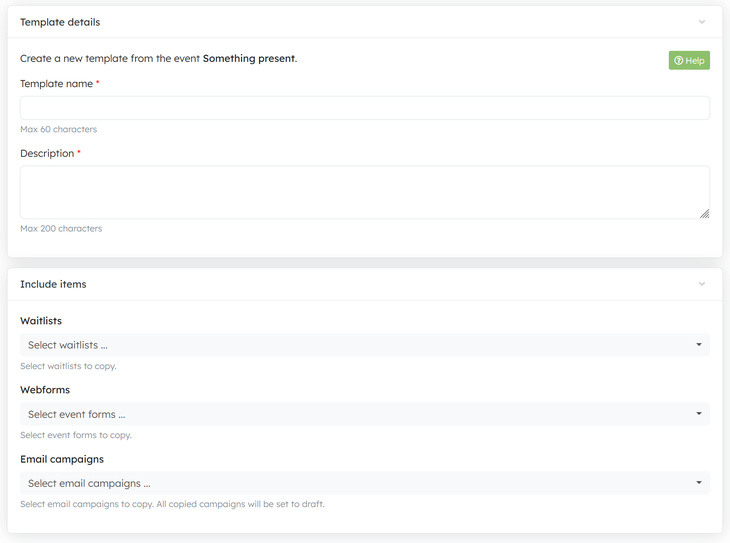
In the Template details section:
- Template name – a short name you and your team will recognise.
- Description – a brief description of when to use this template. This is visible only to event administrators.
In the Include items section, choose what to copy into the template event:
- Waitlists – select one or more waitlists to copy.
- Access codes – select any access codes you want to reuse.
- Packages – select any packages you want to copy.
- Webforms – select any event forms (such as registration or submission forms) to copy.
- Email campaigns – select any email campaigns to copy. All copied campaigns will be set to Draft status so they will not send until you review and activate them.
Click Save to create the template event.
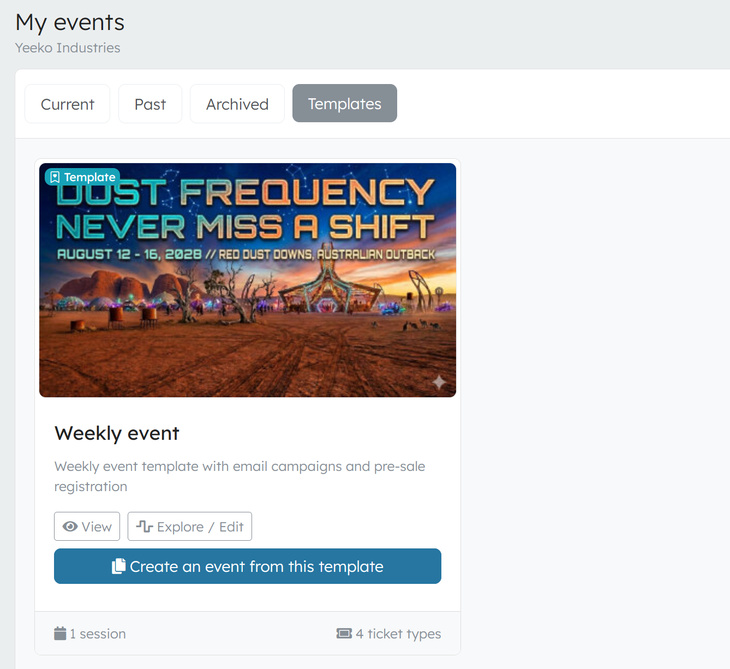
The template event will appear on your My events page under the Template tab.
Exploring and editing a template event
A template event is a real event, so you can explore and edit it before using it to create new events. Template events are not visible to the public.
- Go to My events and switch to the Template tab.
- Click Edit on the template event card to open the event dashboard.
- Review and adjust sessions, ticket types, pricing, settings and any other details.
- You can also add a Template description from the event edit form. This description is visible only to event administrators and appears on the template card.
Changes you make to a template event do not affect any events that were previously created from it.
Creating a new event from a template event
Once you have at least one template event, you can create a new event from it.
- Go to My events and switch to the Template tab.
- Find the template event you want to use.
- Click Create an event from this template.
- A form will open with new event details and item selection.
Filling in the create form
In the New event details section:
- New event name – the name for your new event.
- Copy to organiser profile – choose which of your organiser profiles to create the event in.
In the Include items section, choose what to copy from the template into the new event:
- Waitlists – select one or more waitlists to copy.
- Access codes – select any access codes you want to reuse.
- Packages – select any packages you want to copy.
- Webforms – select any event forms to copy.
- Email campaigns – select any email campaigns to copy. All copied campaigns will be set to Draft status.
Click Save to create the new event.
The new event will be created as a Draft in your chosen organiser profile. The template event is not changed.
What gets copied
When you create an event from a template event, the following is always copied:
- Event settings and details
- Sessions, sections and pricing groups
- Ticket types and constraints
- Locations and categories
The following items are optional and can be selected during creation:
- Waitlists
- Access codes
- Packages
- Webforms
- Email campaigns (set to Draft status)
Tips
- Use clear template names, such as "Monthly meetup – standard" or "Festival – full weekend".
- Keep the template description up to date so your team knows when to use each template.
- Edit your template events before using them to make sure details like dates and pricing are correct.
- Review your template events from time to time and remove ones you no longer use.
- Email campaigns are copied as drafts, so remember to review and activate them before your event goes live.
- You can have multiple template events for different event types (for example, workshops, conferences or social events).
Related articles
Record when something goes wrong with a person at your event, and make sure your team, and other organisers on the platform, are aware of it
A single, mobile-friendly page that brings together the most useful links for your event in one place