Knowledge base
Accessing the QR code for your event
Created on 06 Mar 2026, Updated 14 Oct 2026 05:37
Accessing the QR code for your event
You can quickly access and download the QR code for any of your events from your Events dashboard.
Step 1: Open your Events dashboard
- Log in to your account.
- Go to My events where your events are listed.
Step 2: Click the Tools icon
- Find the event you want the QR code for.
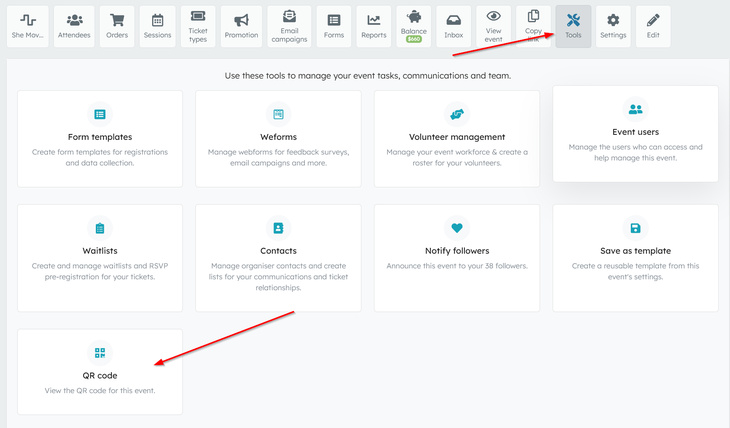
- Click the Tools option for that event to open the tools page.
Step 3: Open the QR code
- On the Tools page, look for the tile labelled QR code.
- Click the QR code tile.
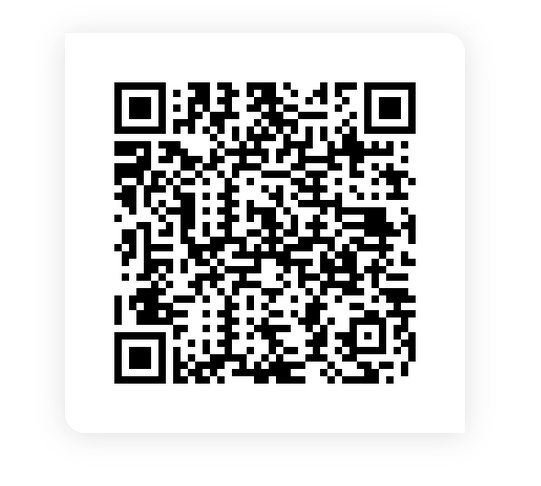
- A modal window will open displaying your event's QR code.
Step 4: Save the QR code image
You can save the QR code to use on posters, websites, or emails:
- Right-click (or long-press on mobile) on the QR code image.
- Choose your browser’s option such as “Save image as…”.
- Select a location on your device and confirm to download the image.
Related articles
Event links page
A single, mobile-friendly page that brings together the most useful links for your event in one place
A single, mobile-friendly page that brings together the most useful links for your event in one place
23 Aug 2026
Template events
Template events are full copies of an event that you can reuse as a starting point for new events.
Template events are full copies of an event that you can reuse as a starting point for new events.
01 Aug 2026
Topics