Knowledge base
Requesting a refund or cancelling your ticket
Created on 20 May 2026, Updated 09 Oct 2026 07:13
Requesting a refund for your order
If you can't attend an event, you may be able to request a refund directly from your orders page. This guide explains how to request a refund and what to expect.
You need to be logged in
To manage your orders and request refunds, you need to have an account and be logged in. If you don't have an account, you can create one using the same email address you used when purchasing your tickets.
Before you request a refund
Not all events offer self-service refunds. Whether you can request a refund depends on:
- The event's refund policy – some events don't allow refunds, or only allow them up to a certain time before the event
- How much time is left – many events have a cut-off date for refund requests
- Whether the event has ended – some events allow refunds for a limited time after the event finishes
If self-service refunds aren't available, you may need to contact the event organiser directly.
How to request a refund
To request a refund, you need to be the person who placed the original order.
There are three ways to find your order:
Find your order
Use this button to find your order. If you're not currently logged in, you will be prompted to log in or create an account first
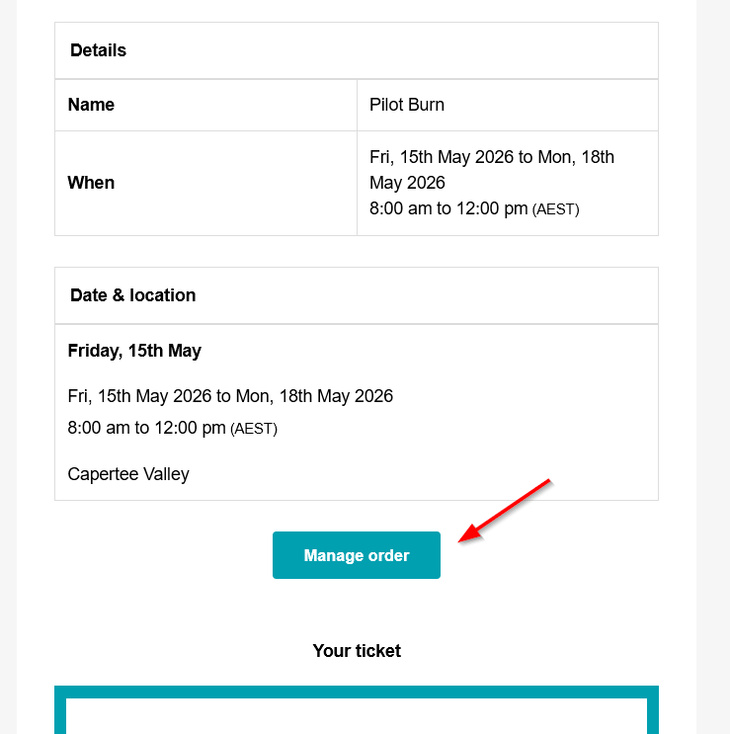
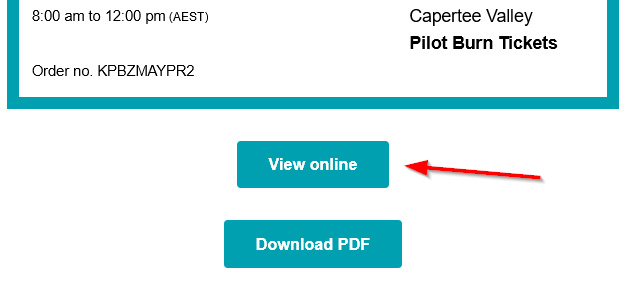
From your order confirmation email:
- Find your order confirmation email.
- Click the View order or Manage order link in the email.
- Log in if prompted.
From your account page:
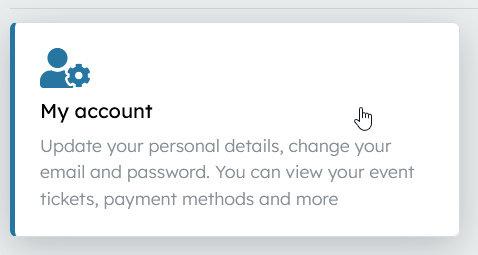
- Log in to your account.
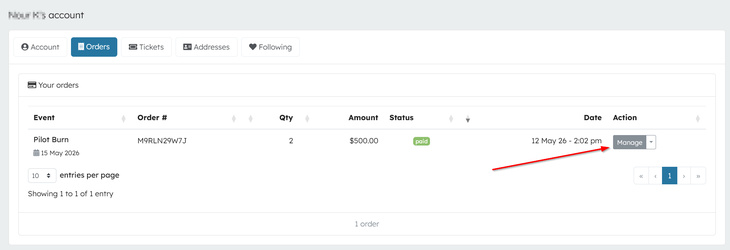
- Go to your account page and click the Orders tab.
- Find the order you want to refund in the list.
- Click the Manage button next to that order.
Once you're on your order page:
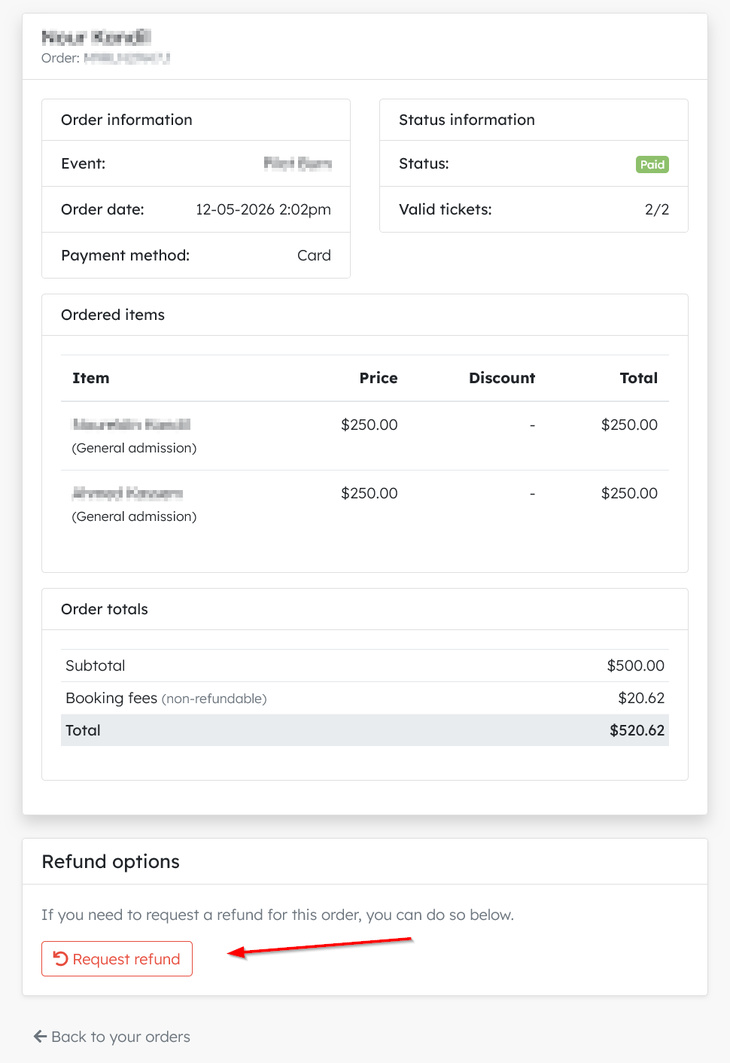
- Look for the Request refund button.
- If the button is available, click it to start your refund request.
If you don't see a refund button, refunds may not be available for this event or the refund period may have passed.
Choosing what to refund
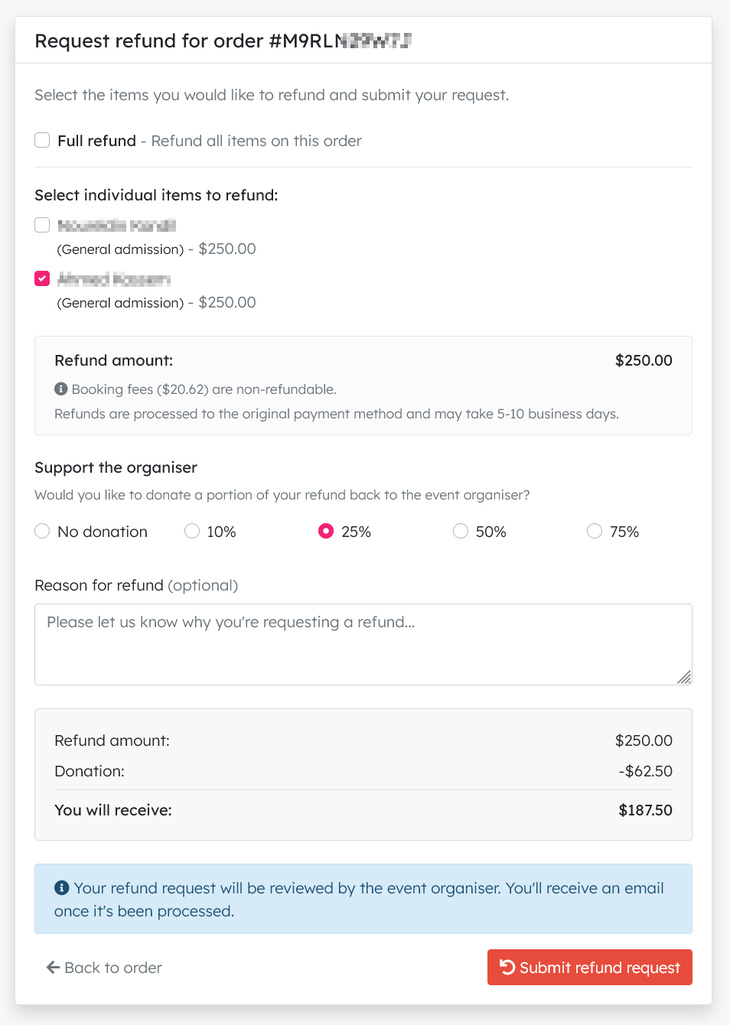
Depending on how the event is set up, you may be able to:
- Refund your entire order – all tickets and items on your order will be refunded
- Refund individual items – choose specific tickets to refund while keeping others
If any tickets have already been checked in at the event, they cannot be refunded.
Refund amounts
The amount you receive may be less than what you paid. This can happen because:
- Partial refunds – some events only refund a percentage of your order (for example, 80% or 50%)
- Booking fees – booking fees are usually non-refundable
- Donations – if you choose to donate part of your refund to the organiser, that amount won't be returned to you
The refund page will show you exactly how much you'll receive before you submit your request.
Donating your refund
Some events give you the option to donate part of your refund back to the event organiser. This is completely optional. If you'd like to support the organiser, you can choose a donation amount when submitting your request.
Providing a reason
You can add a reason for your refund request. This is optional but can help the organiser understand why you're requesting a refund.
What happens next
After you submit your refund request:
- Automatic refunds – some events process refunds automatically. Your refund will be sent straight to your original payment method.
- Manual review – other events require the organiser to review your request. You'll receive an email once they've made a decision.
If your request is approved, the refund will be sent to the payment method you used when you bought your tickets. Refunds typically take 5–10 business days to appear in your account, depending on your bank or card provider.
If your request is rejected, you'll receive an email explaining why. You may be able to contact the organiser directly if you have questions.
Cancelled events
If an event is cancelled by the organiser, you can usually request a refund regardless of the normal refund policy. Check your email for instructions from the organiser.
Common questions
Why can't I see a refund button?
The event may not offer self-service refunds, or the refund period may have passed. Try contacting the event organiser directly.
Why is my refund less than what I paid?
Some events only refund a percentage of your order. Booking fees are also usually non-refundable. The refund page shows the exact amount before you submit.
How long does a refund take?
Once approved, refunds typically take 5–10 business days to appear in your account. This depends on your bank or card provider.
Can I get a refund if I've already checked in?
No. Tickets that have been scanned or checked in at the event cannot be refunded.
What if I bought multiple tickets and only want to refund some?
If the event allows it, you can choose which tickets to refund. Otherwise, you'll need to refund the entire order.
Related articles
This guide explains the payment methods available on the platform, how fees are calculated, and who pays them.
Self-service refunds let your customers request refunds directly from their orders page