Knowledge base
Access code custom messages
Created on 30 Jul 2026, Updated 08 Nov 2026 03:55
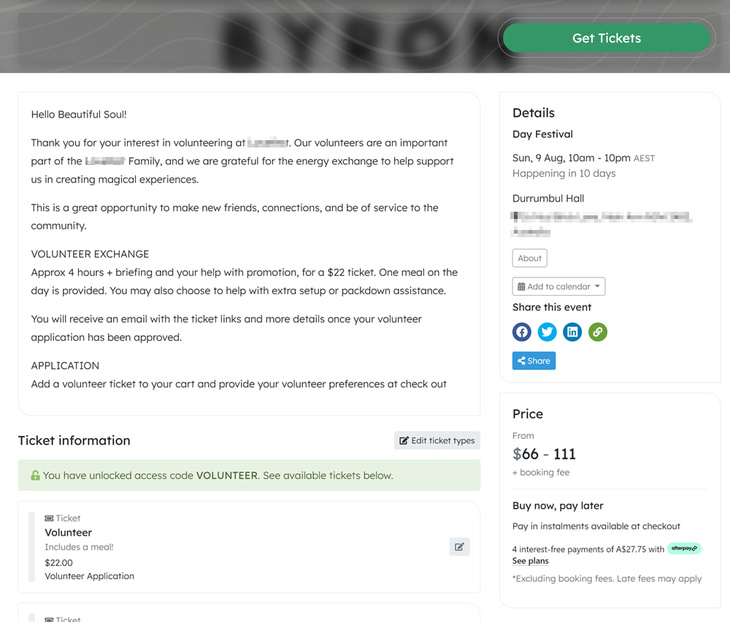
You can add a custom message to an access code that will be shown to customers on the event page when they use that code. This is a simple way to give special instructions or information to people who have a specific access code.
What is an access code custom message?
A custom message is a block of text that you attach to an access code. When someone visits your event page using that access code, the message is displayed above the ticket section, and the event's About text is moved below the tickets.
You might use it to:
- Welcome people who have been given a special code
- Provide instructions specific to that group (for example, VIP guests, sponsors, or members)
- Share details about what is included with their access code
- Direct people to a specific entrance, registration desk, or contact
Examples:
- "Welcome VIP guests! Please proceed to the main entrance on arrival and present your ticket at the VIP check-in desk."
- "Sponsor code: your reserved seating is in rows A–C. Please arrive by 6:30pm."
- "Members: thank you for your continued support. Your discount has been applied to the tickets below."
This field is optional. If you leave it blank, the event page will show the normal layout with no custom message.
Where does the message appear?
When an access code has a custom message:
- The custom message is shown above the ticket section on the event page
- The event's About text is moved to below the tickets
This only applies when someone visits the event page using that specific access code. Other visitors see the normal event page layout.
Using placeholders
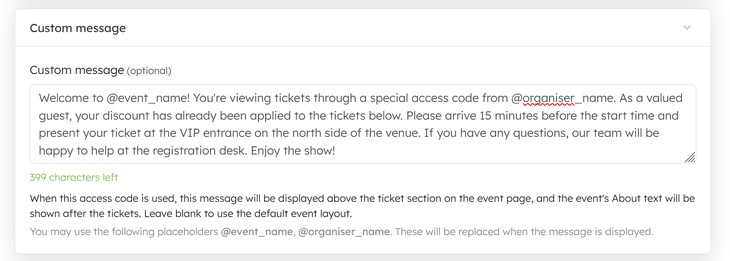
You can include placeholders in your custom message that will be automatically replaced when the message is displayed:
- @event_name — replaced with the name of the event
- @organiser_name — replaced with the name of the organiser or organisation
For example, if you write:
Welcome to @event_name! @organiser_name is excited to have you join us.
It will display as:
Welcome to Summer Music Festival! Acme Events is excited to have you join us.
How to add or edit a custom message
-
Open your event or account Go to your events area and open the event you want to edit.
-
Go to Access codes Open the list of access codes for that event.
-
Edit or create an access code Click an existing access code to edit it, or create a new one.
-
Find the Custom message section In the access code form, scroll to the Custom message section.
-
Write your message
- Type your text into the custom message box.
- You can write up to 800 characters.
- Use the placeholders @event_name and @organiser_name if you want the event or organiser name to be filled in automatically.
-
Save your changes Click Save to save the access code.
The custom message will now appear on the event page whenever someone uses that access code.
Ideas for using custom messages
VIP and special guests
- "Welcome VIP guests! Your reserved seating is in the front rows. Please present your ticket at the VIP entrance."
- "As a VIP ticket holder, you are invited to the pre-show reception from 6:00pm in the foyer."
Sponsors and partners
- "Thank you to our sponsors at @organiser_name. Your support makes this event possible."
- "Sponsor access: please use the side entrance on Smith Street for direct access to the sponsor lounge."
Members and subscribers
- "Members: your exclusive discount has been applied. Thank you for being part of @organiser_name."
- "As a member, you have access to priority seating. Choose from the highlighted tickets below."
Group bookings
- "Group booking: please ensure all members of your group arrive together. Group check-in is at Desk 3."
Tips and best practice
-
Keep it clear and friendly Write as if you are speaking directly to your attendee. A warm, helpful tone works best.
-
Make it code-specific Use the custom message for information that applies only to people with that access code. For event-wide messages, continue using your event description or event notice.
-
Use placeholders for consistency If you reuse the same access code across events, placeholders like @event_name ensure the message always shows the correct event name.
-
Avoid sensitive information Remember that anyone who has the access code will see this message. Do not include private or confidential details.
If you want to change the message later, you can edit it at any time by returning to the Custom message section when editing the access code.
Related articles
We've made some significant updates to improve your ticketing experience.
Packages allow event organisers to bundle multiple ticket types together and create discounts for customers