Knowledge base
Access code access methods
Created on 04 Sep 2026, Updated 03 Nov 2026 18:53
Choosing how an access code can be used
When you create an access code, you can choose how people are able to use it. This is called the access method. It lets you control whether customers enter the code on the event page, use a direct link, or both.
The three options are:
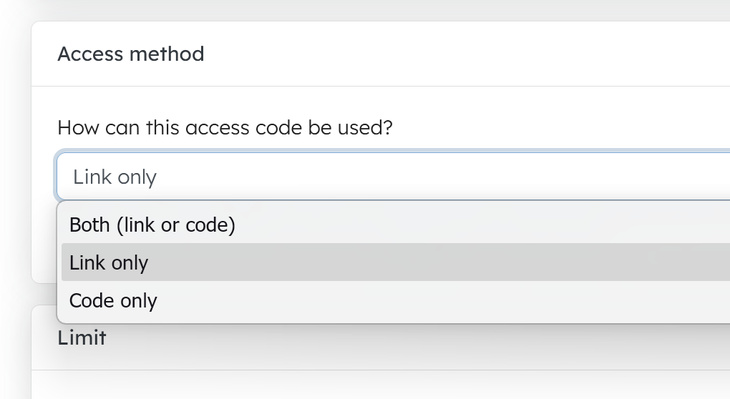
- Both (default) — customers can either enter the code on the event page or follow a direct unlock link
- Link only — the code can only be used through a direct unlock link; there is no Enter access code button on the event page
- Code only — customers must enter the code on the event page; the direct link option is not shown in the admin list
Why use different access methods?
Different situations suit different access methods:
- Use Both when you want to give customers flexibility. You can share the code by text or email and also provide a direct link.
- Use Link only when you want to control how people arrive at the event page, for example in a private email or invitation. This also hides the Enter access code button from the public event page.
- Use Code only when you want people to type in a short code, for example on a poster or social media post.
How to set the access method
- Open your event and go to Access codes.
- Create a new access code or click an existing one to edit it.
- Scroll to the Access method section.
- Choose Both, Link only, or Code only.
- Click Save.
What customers see
The access method changes what is shown to customers on the public event page and what the organiser can copy from the admin list.
Both
Customers can:
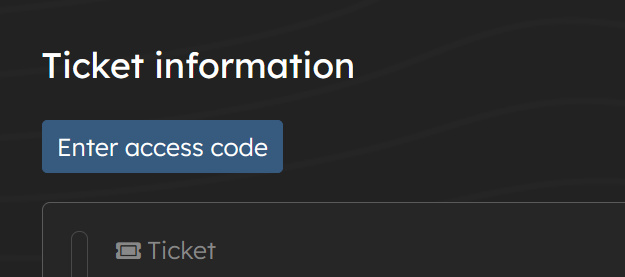
- Enter the code on the event page using the Enter access code button
- Follow a direct unlock link shared by the organiser
The admin list shows both the Direct link / Copy link options and the Copy code option.
Link only
Customers must:
- Follow the direct unlock link you share with them
The Enter access code button is not shown on the event page. This can be useful if you want to keep the code hidden and only share the link. If all active access codes for an event are set to link only, the Enter access code button is removed from the event page entirely.
Code only
Customers can:
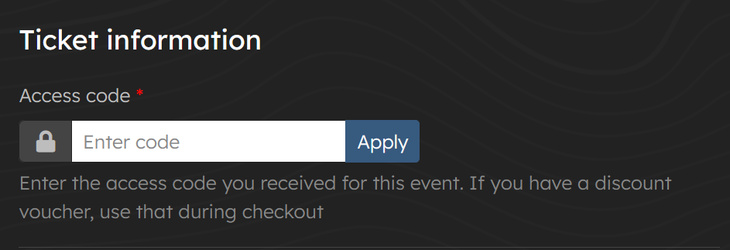
- Enter the code on the event page using the Enter access code button
The direct link options are not shown in the admin list, so you can copy and share only the code itself.
Tips
- If you want to hide the Enter access code button from your event page, set all active access codes to Link only.
- Remember that a code set to Link only cannot be entered manually on the event page. Customers will see an error if they try.
- If you are not sure which to use, leave it as Both. This gives you and your customers the most flexibility.
Related articles
add a custom message to an access code that will be shown to customers on the event page
We've made some significant updates to improve your ticketing experience.
Packages allow event organisers to bundle multiple ticket types together and create discounts for customers