Knowledge base
How to resend a ticket
Created on 09 Apr 2026, Updated 09 Oct 2026 07:52
Resending a ticket to an attendee
Step-by-step process
-
Navigate to attendees page
- Go to your event dashboard
- Select Attendees from the menu

-
Find the guest
- Use the search bar to find the person who needs their ticket resent
- You can search by name, email, or order number
-
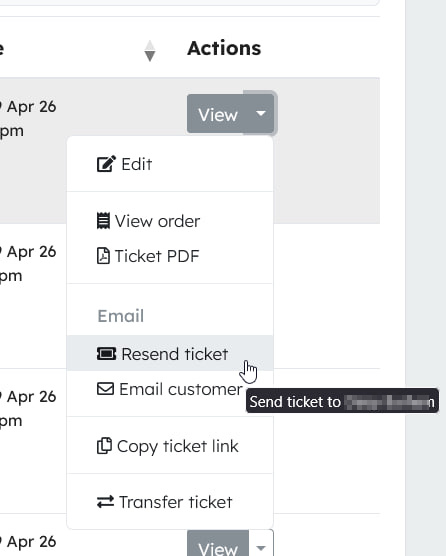
From the actions menu
- Click Resend ticket from the action dropdown menu next to their name
-
The ticket will be emailed
- The ticket will be sent to the address listed on the ticket
Important notes
⚠️ Email goes to current address – Make sure their email address is correct in the ticket details.
🚀 Immediate delivery – The email should be sent immediately after saving.
📩 Check spam folder – Suggest they check their spam or junk folder if they don’t receive it.
Related articles
Guest greeter check-in
Generate temporary, shareable links that grant greeters access to the check-in
Generate temporary, shareable links that grant greeters access to the check-in
05 Mar 2026
Guest ticket automation
Guest ticket automation allows you to streamline your event registration process by automatically creating free tickets
Guest ticket automation allows you to streamline your event registration process by automatically creating free tickets
31 May 2025
Topics