Knowledge base
Removing contacts from a list
Created on 12 Apr 2026, Updated 10 Oct 2026 10:24
How to remove one or more contacts from a list
You can remove contacts from a list individually or in bulk. Both options are available when you are viewing the contacts within a specific list.
Getting to a list
- Navigate to Contacts from your organiser menu
- Click the Lists tab
- Click on the list you want to manage
This opens the list view, showing all contacts currently in that list.
Removing a single contact
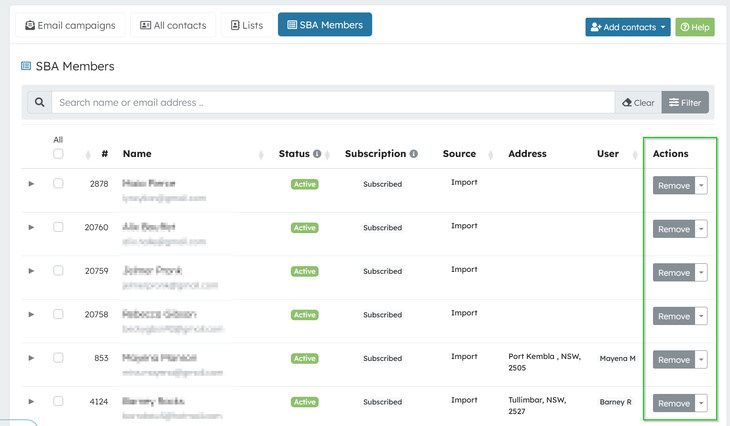
- Find the contact you would like to remove in the list
- From the Actions column for that contact
- Click Remove
- Confirm the removal in the pop-up
The contact is removed from the list immediately. This does not delete or deactivate the contact — it only removes them from the current list.
Removing multiple contacts at once
- Open the list you want to manage
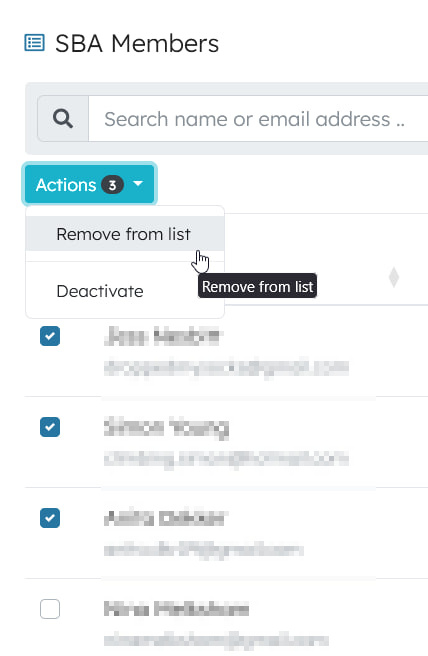
- Tick the checkbox next to each contact you would like to remove, or use the All checkbox at the top of the column to select every contact on the page
- An Actions button appears above the table showing how many contacts are selected
- Click Actions and select Remove from list
- Review the confirmation message, which shows how many contacts will be removed
- Click Confirm to proceed
All selected contacts are removed from the list in one step.
Good to know
- Removing is not deleting — Contacts removed from a list remain in your contact database. They can be added back to the same list or any other list at any time.
- Permission required — You need the Manage lists permission to remove contacts from a list.
- Active contacts only — The individual remove option is available for active contacts.
- Bulk actions require selection — If you click Actions without selecting any contacts, you will be prompted to select one or more contacts first.
Related articles
Topics