Knowledge base
Field inventory management
Created on 21 Dec 2025, Updated 22 Oct 2026 10:23
Field inventory lets you limit how many people can select specific options in your event forms, with optional pricing for each choice. This is perfect for managing limited resources like meal choices, workshop sessions, merchandise sizes, or any other option where you have a fixed quantity available.
What is field inventory?
When you add option fields (like dropdowns, radio buttons, or checkboxes) to your forms, you can enable inventory tracking for individual options. This means you can:
- Set a maximum number of people who can select each option
- Track how many have been selected in real-time
- Automatically prevent over-booking when options run out
- Add optional surcharges (extra fees) to specific options
Common use cases
Meal preferences
- Limit vegetarian meals to 50 servings
- Track gluten-free options separately
- Charge extra for premium meal upgrades
Workshop sessions
- Cap workshop attendance at room capacity
- Prevent overbooking popular sessions
- Track registrations across multiple ticket types
Merchandise and add-ons
- Limit t-shirt sizes based on stock
- Track parking passes with limited spaces, add different prices per pass type
- Manage equipment rentals with fixed quantities
Seating preferences
- Allocate VIP seating areas
- Manage accessible seating requests
- Control table assignments
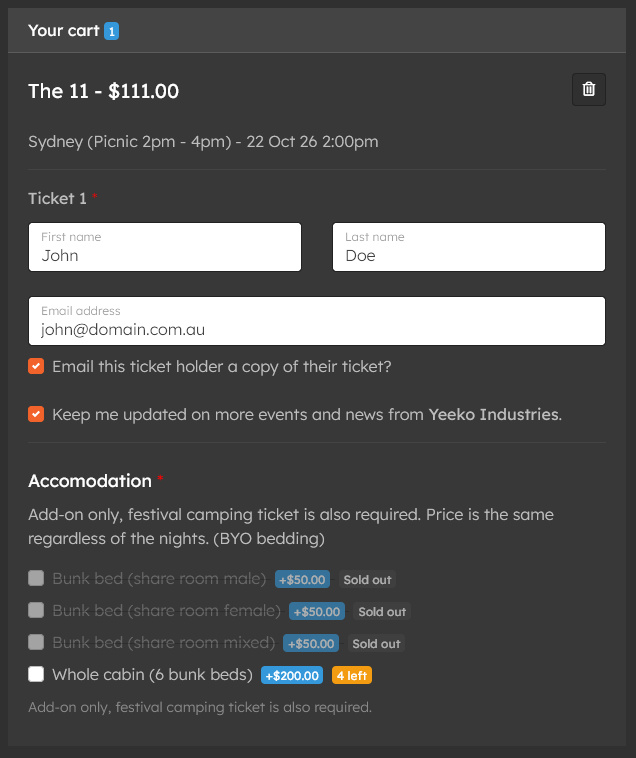
Setting up field inventory
Step 1: Create your option field
- Go to your event's Forms section
- Add or edit a field (dropdown, radio buttons, or checkboxes)
- Add your options (e.g., "Chicken", "Vegetarian", "Vegan")
- Enable the Inventory tracking toggle on the field
- Click Save

Step 2: Configure inventory for each option
- A form must exist and be assigned to a ticket type
- Navigate to Forms → Field inventory in your event
- Find the field you want to configure and click Manage inventory
- For each option you want to track:
- Toggle Track to ON
- Enter the total inventory available
- Optionally add an extra price (surcharge) for that option
- Click Save
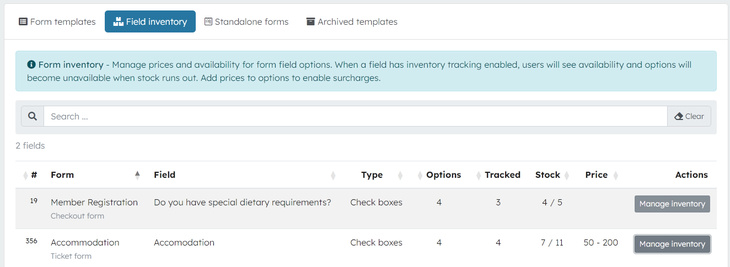
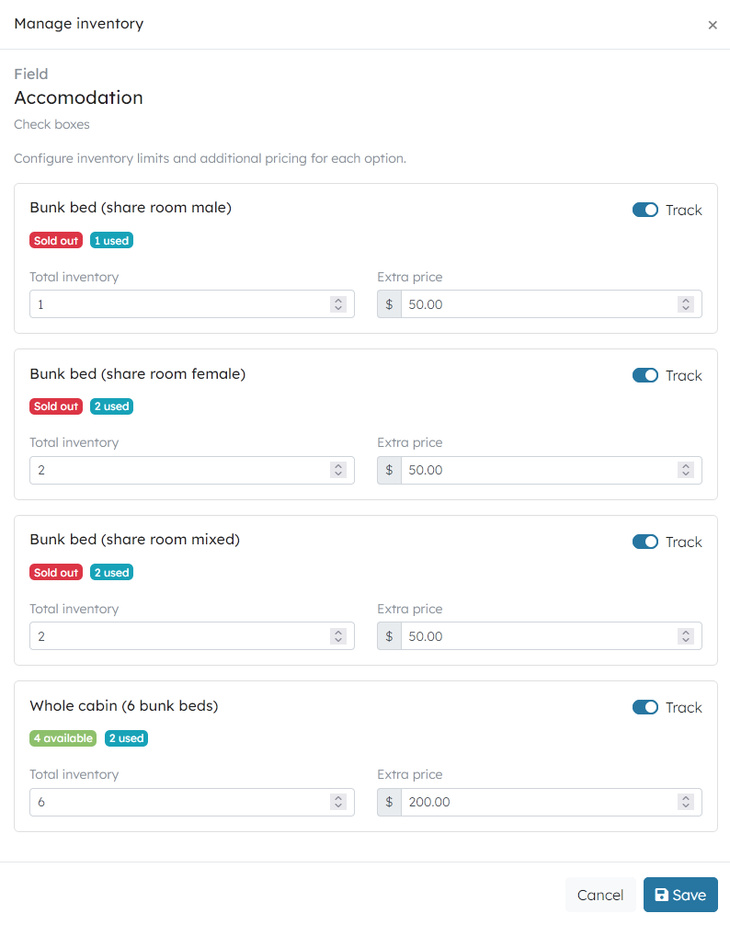
Example setup
Field: Meal preference (dropdown)
| Option | Tracking enabled | Total quantity | Surcharge |
|---|---|---|---|
| Chicken | Yes | 100 | $0 |
| Vegetarian | Yes | 50 | $0 |
| Vegan | Yes | 30 | $0 |
| Premium steak | Yes | 20 | $15 |
How inventory tracking works
Real-time availability
When someone adds a ticket to their cart and selects an option:
- The system reserves that option temporarily
- Other customers see the updated availability
- If they abandon their cart, the reservation is released automatically
Checkout validation
Before payment is processed:
- The system checks that all selected options are still available
- If someone else took the last spot, the customer is notified
- They can choose a different option or remove the item
Multiple tickets in one order
If someone buys multiple tickets and selects the same limited option for each ticket:
- The system validates the total quantity across all tickets
- For example, if only 1 vegetarian meal remains and they select it for 2 tickets, checkout will be blocked
- They'll see a clear message: "Insufficient inventory for 'Vegetarian'. Only 1 available."
Inventory states
Each option shows its current status:
- Available – Plenty of spots remaining
- [Number] available – Shows exact count when running low
- Sold out – No more available (option becomes unselectable)
- Unlimited – No tracking enabled (always available)
Surcharges (optional fees)
Note: Surcharges can only be applied to options on ticket forms. Other form types (checkout forms, waitlist forms, standalone forms) support inventory tracking but not pricing.
You can add extra charges to specific options on ticket forms. This is useful for:
- Premium upgrades (better seats, meals, etc.)
- Add-ons with costs (parking, equipment rental)
- Options that require additional resources
How surcharges work:
- The surcharge is added to the ticket price automatically
- It appears as a separate line item on the order
- Customers see the total including surcharges before checkout
- Surcharges are included in all reports and financial summaries
Example:
- Base ticket: $50
- Customer selects "Lunch & dinner" with $15 surcharge
- Total for that ticket: $65
Inventory management
Viewing inventory status
- Go to Forms in your event
- Click Manage inventory on any field with tracking enabled
- View current status for each option:
- Total inventory
- Reserved (in carts but not paid)
- Used (confirmed purchases)
- Available (remaining)
Adjusting inventory
You can update inventory quantities at any time:
- Click Manage inventory
- Edit the total quantity for any option
- Click Save
Important: If you reduce inventory below the current used count, the system will prevent the change to avoid data inconsistency.
Monitoring inventory
The inventory display shows:
- Total: Your set limit
- Reserved: Currently in shopping carts
- Used: Confirmed purchases
- Available: Total - Reserved - Used
Status colours:
- Green: Plenty available
- Orange: Running low
- Red: Sold out
Restrictions and limitations
What you can track
✅ Can track:
- Dropdown options
- Radio button options
- Checkbox options
- Any option field on ticket or order forms
❌ Cannot track:
- Text fields (open-ended responses)
- Number fields
- Date fields
- File uploads
Important notes
Inventory is event-specific
- Each event has separate inventory counts
- Copying an event does not copy inventory counts (starts fresh)
Inventory is per option, not per field
- You can track some options in a field and leave others unlimited
- Each option has its own independent inventory count
Cart reservations expire
- Items in abandoned carts are released after the cart timeout period
- This prevents inventory from being held indefinitely
No negative inventory
- The system prevents overselling
- If inventory reaches zero, the option becomes unavailable immediately
Surcharges are per selection
- If someone selects a checkbox option with a $10 surcharge, they pay $10
- If they select it on multiple tickets, they pay $10 per ticket
Surcharges only work on ticket forms
- Pricing is only available for fields on ticket forms
- Other form types (checkout, waitlist, standalone) can track inventory but cannot add surcharges
Best practices
Setting quantities
- Start conservative – You can always increase inventory later
- Account for no-shows – Consider overbooking slightly for events where this is acceptable
- Review regularly – Check inventory status as your event approaches
Using surcharges
- Be transparent – Make sure customers can see the extra cost before selecting
- Price appropriately – Surcharges should reflect actual cost differences
- Test checkout – Verify surcharges appear correctly on orders
Communication
- Update event description – Mention limited availability for popular options
- Set expectations – Let customers know some options may sell out
- Provide alternatives – Ensure there are always some unlimited options available
Monitoring
- Check daily – Review inventory status regularly during ticket sales
- Adjust as needed – Increase quantities if you can accommodate more
- Close early – Consider closing options before they fully sell out to manage expectations
Troubleshooting
"Option shows as sold out but I have inventory"
- Check the Reserved count – items may be in active shopping carts
- Wait for cart timeout period to release abandoned reservations
- Manually increase total inventory if needed
"Customer can't complete checkout"
- Verify all selected options still have available inventory
- Check if multiple tickets are selecting the same limited option
- Review error message for specific option that's unavailable
"Surcharge not appearing on order"
- Confirm surcharge is set in inventory management
- Verify the option was actually selected (not just viewed)
- Check that the surcharge amount is greater than $0
"Need to reduce inventory but system won't let me"
- You cannot reduce inventory below the current used count
- Reserved inventory can be reduced (will cancel those reservations)
- Consider closing the option instead of reducing quantity
Tips
- Test before launch – Add test tickets with tracked options to verify behavior
- Use descriptive option names – "Vegetarian meal (limited to 50)" helps set expectations
- Monitor popular options – Keep an eye on options that sell quickly
- Plan for changes – Build in buffer room for last-minute adjustments
- Communicate limits – Let customers know when options are running low
Need help? Contact support if you have questions about setting up field inventory for your event.
Related articles
Learn about the different types of form templates and how and where to implement them
Custom form templates allow you to collect specific information from attendees when they register for your events.
Webforms are a versatile tool that allow you to gather important information and feedback from users