Knowledge base
Volunteer handbooks
Created on 07 Jun 2026, Updated 26 Oct 2026 16:36
Volunteer handbooks
Volunteer handbooks provide essential information and resources to your volunteers in an organised, accessible format. They help ensure volunteers have the knowledge they need to perform their roles effectively and understand event policies and procedures.
What are volunteer handbooks?
Handbooks are information documents you create to share important details with your volunteers. They can include:
- Event policies and procedures
- Safety guidelines and emergency protocols
- Role-specific instructions and expectations
- Maps, schedules, and contact information
- Code of conduct and dress requirements
- FAQs and troubleshooting guides
Handbooks can be general (available to all volunteers) or team-specific (only visible to volunteers assigned to particular teams).
Creating a handbook
To create a new handbook:
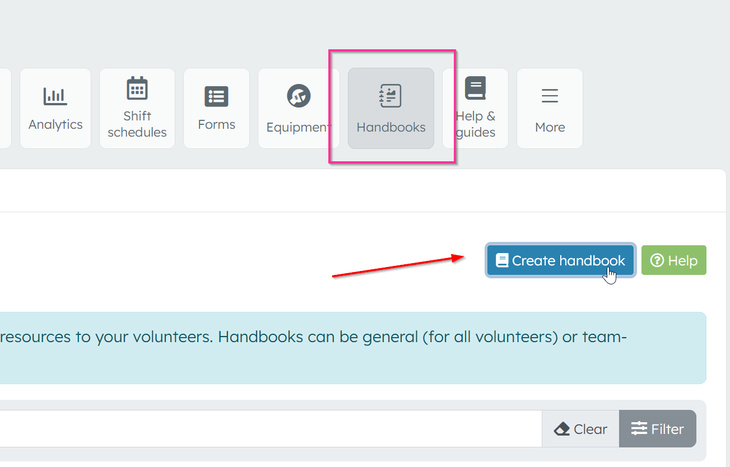
- Go to Volunteer management → Handbooks
- Click Add handbook
- Fill in the handbook details:
- Name – A clear, descriptive title (e.g., "Security team procedures" or "Event safety guide")
- Description – A brief summary that appears in the handbook list
- Content – The main handbook content using the rich text editor
- Links – Optional related links with titles and URLs
- Teams – Select which teams can access this handbook (leave empty for general handbooks available to all volunteers)
- Status – Set to Active to make it visible to volunteers
- Weight – Optional priority number (lower numbers appear first)
- Click Save
Formatting handbook content
Use the rich text editor to format your handbook content:
- Headings – Structure content with clear section headings
- Lists – Use bullet points or numbered lists for easy scanning
- Bold and italic – Emphasise important information
- Links – Add hyperlinks to external resources
- Images – Include diagrams, maps, or photos where helpful
- YouTube videos – Embed video content directly in handbooks
For large files and images: Use the Links section to reference documents stored on external cloud storage platforms (Google Drive, Dropbox, OneDrive, etc.) rather than embedding them directly. This keeps handbooks loading quickly and makes it easier to update files without editing the handbook.
Keep content concise and well-organised. Break long documents into sections with clear headings.
General vs team-specific handbooks
General handbooks are visible to all volunteers for the event. Use these for:
- Event-wide policies and procedures
- General safety information
- Overall event schedules and maps
- Code of conduct
- Contact information for event organisers
Team-specific handbooks are only visible to volunteers assigned to those teams. Use these for:
- Role-specific instructions
- Team procedures and workflows
- Specialised equipment or safety requirements
- Team schedules and meeting points
- Team-specific contacts
A single handbook can be assigned to multiple teams if the information applies to several groups.
Managing handbooks
Editing a handbook
- Go to Volunteer management → Handbooks
- Find the handbook in the list
- Click the handbook name or the edit icon
- Make your changes
- Click Save
Viewing a handbook
Click the view icon (eye) next to any handbook to see how it appears to volunteers.
Deleting a handbook
- Find the handbook in the list
- Click the delete icon (bin)
- Confirm the deletion
Note: Deleting a handbook is permanent and cannot be undone.
Organising handbooks
Use the Weight field to control the order handbooks appear:
- Lower numbers appear first (e.g., 1, 2, 3)
- Handbooks with the same weight are sorted alphabetically
- Leave weight blank for handbooks that don't need specific ordering
How volunteers access handbooks
Volunteers can view handbooks relevant to them through their volunteer portal:
- Volunteers receive a unique link to their volunteer portal (sent via email or notification)
- In the portal, they click the Handbooks menu item
- They see two sections:
- Event handbooks – General handbooks available to all volunteers
- Team handbooks – Handbooks specific to teams they're assigned to
- Clicking any handbook opens it in a modal window for easy reading
Volunteers only see:
- Active handbooks (status = Active)
- General handbooks for their event
- Team-specific handbooks for teams they're assigned to through confirmed shift assignments
Best practices
Keep it current
- Review and update handbooks regularly
- Update information when event details change
- Remove outdated handbooks after events
Make it scannable
- Use clear headings and short paragraphs
- Include bullet points and numbered lists
- Highlight critical information
Be specific
- Provide concrete examples and instructions
- Include contact details for questions
- Add maps, diagrams, or photos where helpful
Organise logically
- Group related information together
- Use consistent formatting across handbooks
- Create separate handbooks for different topics rather than one long document
Test volunteer access
- View handbooks as they appear to volunteers
- Check that team assignments are correct
- Verify links and images work properly
Common use cases
Event safety handbook (general)
- Emergency procedures and contacts
- First aid locations
- Evacuation routes and assembly points
- Incident reporting process
Team procedures handbook (team-specific)
- Step-by-step task instructions
- Equipment locations and usage
- Team check-in procedures
- Shift handover process
Volunteer welcome guide (general)
- Event overview and schedule
- Parking and transport information
- Meal arrangements
- What to bring and wear
Role-specific guide (team-specific)
- Detailed role responsibilities
- Common scenarios and how to handle them
- Escalation procedures
- Team-specific contacts
Troubleshooting
Volunteers can't see a handbook
- Check the handbook status is Active
- Verify the event is correctly set
- For team handbooks, confirm volunteers are assigned to the correct teams
- Ensure volunteers have confirmed shift assignments (pending assignments don't grant access)
Handbook appears in wrong order
- Adjust the Weight field (lower numbers appear first)
- Check other handbooks' weights for conflicts
Content doesn't display correctly
- Use the rich text editor formatting tools
- Avoid pasting content directly from Word (use "Paste as plain text")
- Preview the handbook to check formatting
Links don't work
- Ensure URLs include http:// or https://
- Test links after saving
- Use the Links section for better organisation
Related articles
This guide walks you through the complete workflow of building and managing your volunteer roster
The Volunteer Management System provides a comprehensive solution for organising, managing, and coordinating volunteers for your events.
Learn how to organise volunteers into teams and roles, and manage team availability for your events.
Here's your 2-minute guide to smarter rostering - when to assign, how volunteers get notified, and why waiting 1-2 weeks before your event saves everyone time. Perfect for team leads!
Learn how to create shift schedules that automatically generate multiple volunteer shifts based on operating hours and shift duration.