Knowledge base
Volunteer team lead invite links
Created on 11 Apr 2026, Updated 08 Oct 2026 12:55
Team invite links
Team invite links let you invite someone to join your organiser, event, and a specific team in one step. When the person accepts the link, they're automatically set up with the right access and team assignment — no manual setup needed.
How it works
When you create a team invite link, you choose:
- A team to assign the person to
- A position within that team (e.g. Participant, Crew member, Team lead, or Coordinator)
- How long the link stays valid
- How many times the link can be used
When someone accepts the link, the system will:
- Add them to your organiser (if they're not already a member)
- Add them to the event
- Assign them to the chosen team with the selected position
- Give them the Volunteer lead organiser role (if they don't already have a higher role)

Creating a team invite link
- Navigate to your event dashboard
- Go to Volunteers → Team users
- Click the Team invite links button
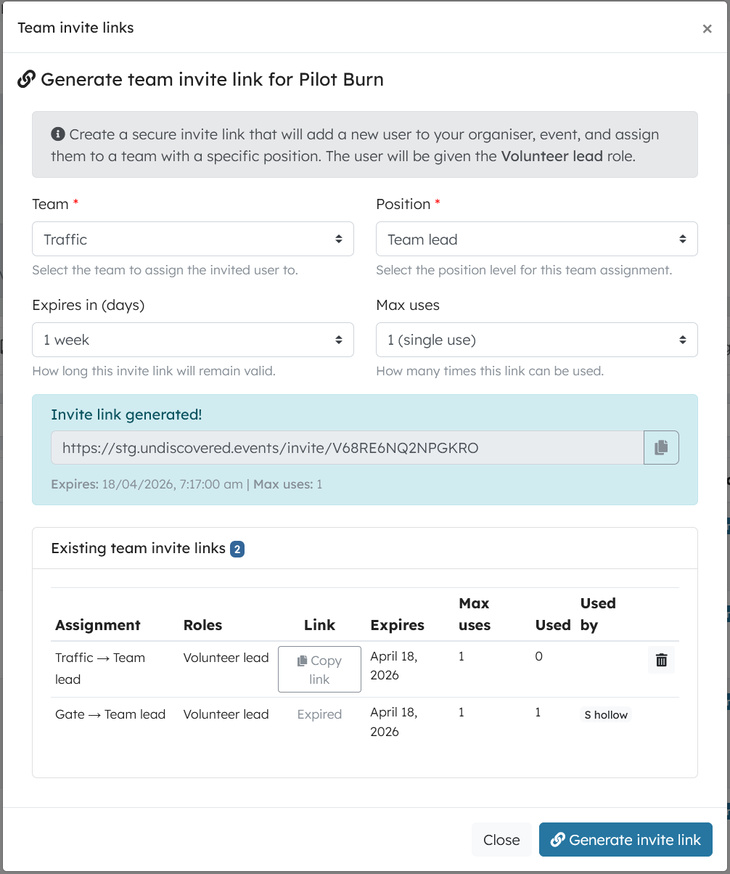
- Fill in the form:
- Team — Select the team you want to assign
- Position — Choose the position level
- Expires in — How long the link remains valid (1 day to 1 month)
- Max uses — How many people can use this link (1, 5, 10, 25, 50, or unlimited)
- Click Generate invite link
- Copy the link and share it with the person you're inviting
Sharing the link
Once generated, you can:
- Click the copy button to copy the link to your clipboard
- Send the link via email, messaging app, or any other channel
- The recipient does not need an existing account — they can create one when they accept
Viewing existing links
The team invite links modal shows all existing team invite links for the current event, including:
| Column | Description |
|---|---|
| Assignment | The team and position the link assigns |
| Roles | The organiser role granted |
| Link | Copy button (or "Expired" if no longer valid) |
| Expires | When the link stops working |
| Max uses | How many times the link can be used |
| Used | How many times it has been used so far |
| Used by | Who has accepted the link |
Revoking a link
If you need to cancel an invite link before it expires:
- Open the Team invite links modal
- Find the link in the table
- Click the delete icon to revoke it
Revoked links can no longer be used, even if they haven't expired.
What the recipient sees
When someone opens an invite link:
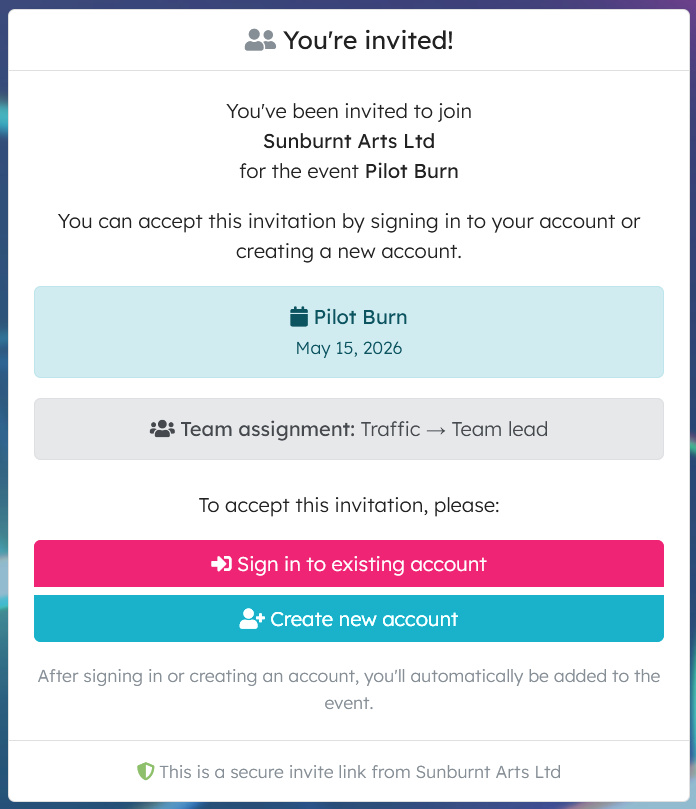
- If they're not signed in, they'll see a page showing the organiser name, event details, and the team assignment. They can sign in or create a new account to accept.
- If they're already signed in, the invite is processed straight away, and they're redirected to the event dashboard.
Both the recipient and the invite creator receive an email confirming the acceptance, including the team assignment details.
Common uses
- Onboarding new team leads — Create a single-use link for a specific person with the Team lead position
- Recruiting crew members — Create a multi-use link and share it with a group to join a team as Crew members
- Open team registration — Use an unlimited link to let anyone join a team as a Participant
Tips
- Use single-use links when inviting a specific person to maintain control over who joins
- Use multi-use links when you need to onboard a group to the same team and position
- Set a short expiry for sensitive positions like Team lead or Coordinator
- Check the existing links table regularly to monitor who has accepted and revoke any unused links
- If someone already has an organiser role higher than Volunteer lead, their existing role is kept
Troubleshooting
Link says "Expired"
The link has passed its expiry date. Generate a new one with a longer validity period.
Person wasn't assigned to the team
Check that:
- The link hadn't already reached its maximum number of uses
- The team still exists and is active
- The event is still active
Person has the wrong role
Team invite links grant the Volunteer lead role by default. If the person needs a different organiser role, update it manually in Users after they've accepted.
Related articles
This guide walks you through the complete workflow of building and managing your volunteer roster
The Volunteer Management System provides a comprehensive solution for organising, managing, and coordinating volunteers for your events.
Learn how to organise volunteers into teams and roles, and manage team availability for your events.
Here's your 2-minute guide to smarter rostering - when to assign, how volunteers get notified, and why waiting 1-2 weeks before your event saves everyone time. Perfect for team leads!
Learn how to create shift schedules that automatically generate multiple volunteer shifts based on operating hours and shift duration.