Knowledge base
Related teams
Created on 24 Apr 2026, Updated 21 Oct 2026 10:51
Related teams
When organising volunteers, some teams are closely connected — for example, Gate, Greeters, and Traffic all involve front-of-house duties. A volunteer who prefers one of these teams is likely a good fit for the others too. The related teams feature lets you link teams together so that volunteers are automatically considered for shifts in related teams, without needing to update their preferences.
How it works
When you mark two teams as related, volunteers who have preferenced one team will also appear as eligible for shifts in the other. These are called shadow preferences — the volunteer hasn't directly chosen that team, but their preference for a related team makes them a candidate.
Shadow preferences always rank below direct preferences. A volunteer who has specifically chosen a team will always score higher than one who matched through a related team.
Setting up related teams
- Navigate to Volunteers → Teams & roles
- Click Edit on the team you want to configure
- In the Related teams field, select one or more teams
- Click Save
The relationship is bidirectional — if you link Gate to Greeters, then Greeters is automatically linked back to Gate. You only need to set it up from one side.
You can link as many teams as you like. For example, you could link Gate, Greeters, and Traffic to each other so that a volunteer who prefers any one of them is considered for all three.
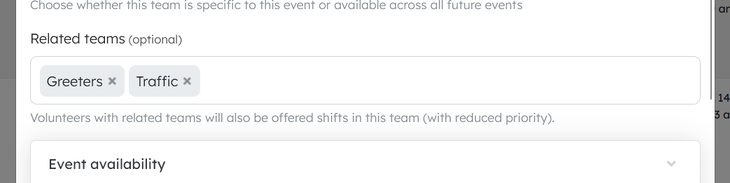
Note: The related teams field only appears when editing an existing team, not when creating a new one.
Where related teams take effect
Related teams influence several parts of the system:
| Area | Effect |
|---|---|
| Assigning volunteers to a shift | Volunteers with a related team preference appear in the eligible list |
| Assigning shifts to a volunteer | Shifts from related teams appear in the eligible list |
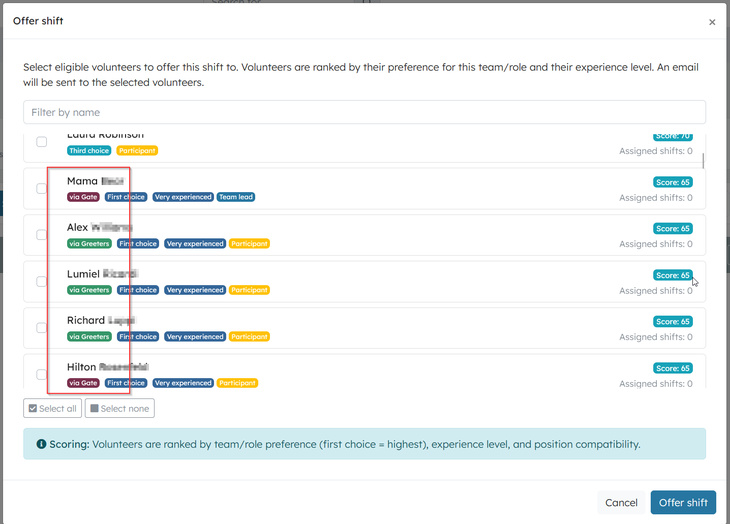
| Shift offers (notifications) | Volunteers with a related team preference are included when sending shift offers |
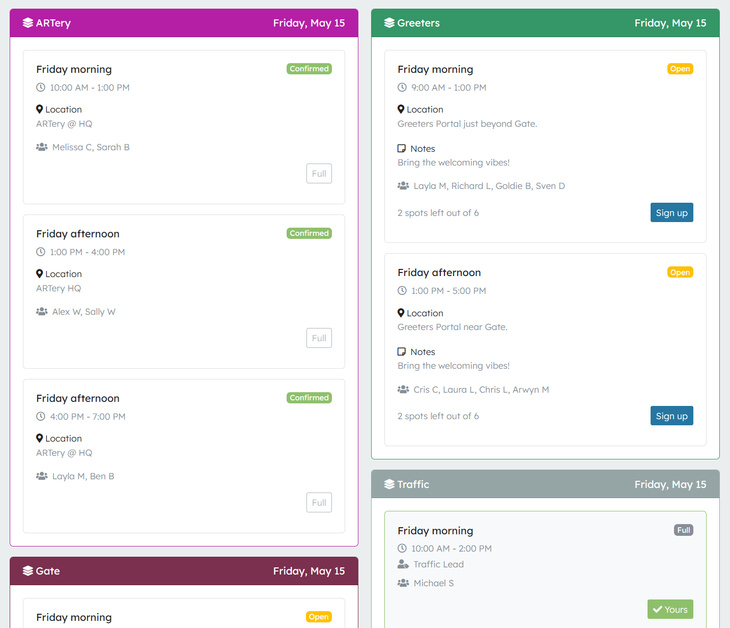
| Volunteer portal roster | Shifts from related teams appear in the volunteer's filtered roster view |
In all cases, shadow-matched volunteers and shifts are clearly labelled with a coloured badge showing "via [Team name]", so you can see at a glance which team the volunteer actually preferenced.
How scoring works
The assignment system uses a three-tier model to rank volunteers:
| Tier | Description | Score impact |
|---|---|---|
| Direct preference | Volunteer has preferenced this exact team | Full score |
| Shadow preference | Volunteer has preferenced a related team | Reduced score (approximately 65%) |
| No preference | Volunteer has not preferenced this team or any related team | Only shown when "include all" is enabled; lowest score |
Within each tier, volunteers are further ranked by their preference order (1st choice scores highest), experience level, and position type — the same factors used for direct preferences.
This means that when you're assigning volunteers to a shift, you'll see direct-preference volunteers listed first, followed by shadow-preference volunteers, each clearly labelled.
Example
Suppose you have three teams:
- Gate — Entry point management
- Greeters — Welcoming guests
- Traffic — Directing vehicles and pedestrians
You link all three as related teams. A volunteer named Alex has preferenced Greeters as their first choice.
When you go to assign volunteers to a Gate shift, Alex will appear in the eligible list with a badge showing "via Greeters" in the Greeters team colour. Alex's score will be lower than volunteers who directly preferenced Gate, but higher than volunteers with no relevant preference at all.
Alex didn't need to update their preferences — the system automatically recognised the connection.
Volunteer portal roster
In the volunteer's portal roster, they will be able to see and sign up for shifts from shadow teams
Tips
- Link teams that share similar skills — If volunteers from one team could reasonably fill shifts in another, link them
- Don't over-link — Linking too many unrelated teams dilutes the usefulness of preferences. Keep links meaningful
- Check the badges — When assigning volunteers, look for the "via" badges to understand why someone appears in the list
- Use with shift offers — Related teams are especially useful when sending shift offer notifications, as they widen the pool of eligible volunteers without including everyone
- No preference changes needed — Volunteers don't need to update their registrations; the system handles it automatically based on your team configuration
Related articles
This guide walks you through the complete workflow of building and managing your volunteer roster
The Volunteer Management System provides a comprehensive solution for organising, managing, and coordinating volunteers for your events.
Learn how to organise volunteers into teams and roles, and manage team availability for your events.
Here's your 2-minute guide to smarter rostering - when to assign, how volunteers get notified, and why waiting 1-2 weeks before your event saves everyone time. Perfect for team leads!
Learn how to create shift schedules that automatically generate multiple volunteer shifts based on operating hours and shift duration.