Knowledge base
Inviting contacts to volunteer
Created on 21 Oct 2026, Updated 21 Oct 2026 14:21
Inviting contacts to volunteer
Inviting contacts is a second chance for people who did not opt in to volunteering when they bought their ticket. Each invite emails the contact a link to your event's shareable volunteer form, where they answer your volunteer questions and submit their own details.
Sending an invite does not register anyone — no volunteer is added until the recipient submits the form, and submitting does not assign them to shifts.
Before you start
- Invitations go to people already in your organiser contact list.
- An event administrator, manager or team lead can help you send invitations or set up the form. If you do not see an option, ask your event administrator or manager.
- The event must not have ended.
Send invitations
- Open your event and go to Volunteers.
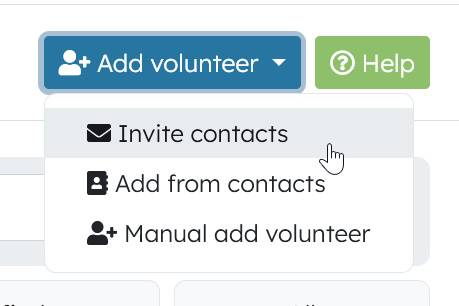
- Click Add volunteer and choose Invite contacts.
- Search or browse your contacts — only contacts not already registered for this event are shown. Tick up to 50 people per batch.
- Click Send invites.
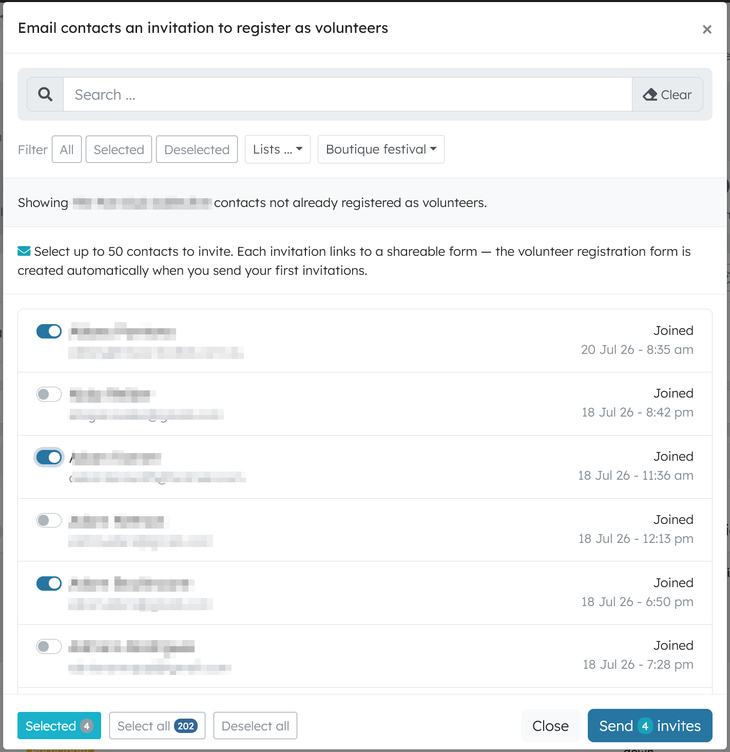
The results show how many invitations were sent, skipped or failed. Skipped contacts have a missing, invalid or bounced email address. Failed invitations could not be sent this time — you can try again later.
If your event doesn't have a volunteer form yet and you're allowed to set one up, it is created automatically the first time you send invitations — just opening the contact list doesn't create anything.
Optional: set up the volunteer form in advance
- Go to the event's Volunteers → Setup status page.
- On the optional Set up a volunteer event webform step, click Set up volunteer form.
- In the modal, click Set up event form — or, if a suitable form is already attached to this event, select it under Use an existing form on this event and click Use this form.
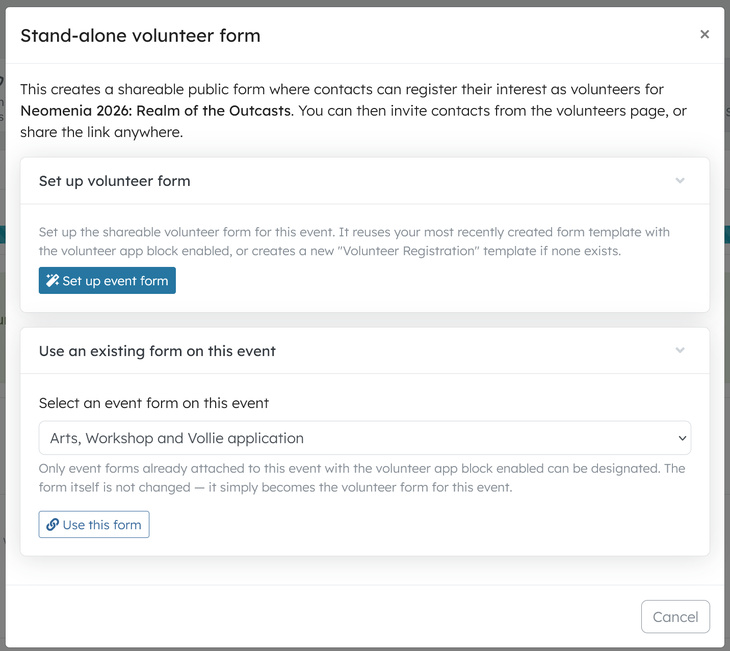
When the step is complete, the status page shows the shareable public link, plus Manage form to edit its questions from the event webforms page.
Things to know about the shareable link
- The link is the same for everyone and not personalised — treat it like any public form link.
- Anyone with the link can submit — including people outside your contact list — and could submit more than once.
- Add from contacts on the same dropdown adds people as volunteers straight away instead of inviting them — you don't need it before sending invitations.
- To reach ticket holders in bulk instead of individual contacts, see the Inviting ticket holders to volunteer by email campaign article.
Related articles
This guide walks you through the complete workflow of building and managing your volunteer roster
The Volunteer Management System provides a comprehensive solution for organising, managing, and coordinating volunteers for your events.
Learn how to organise volunteers into teams and roles, and manage team availability for your events.
Here's your 2-minute guide to smarter rostering - when to assign, how volunteers get notified, and why waiting 1-2 weeks before your event saves everyone time. Perfect for team leads!
Learn how to create shift schedules that automatically generate multiple volunteer shifts based on operating hours and shift duration.