Knowledge base
Avoiding duplicate shift offer emails
Created on 05 Aug 2026, Updated 24 Oct 2026 17:40
Avoiding duplicate shift offer emails
When you offer a shift to a volunteer, the email they receive includes a link to their volunteer dashboard, which already shows them every available shift in your team. This means you don't need to send a separate offer for every shift — one email is enough for volunteers to see and respond to all of the team's shifts.
To prevent volunteers from receiving multiple emails about the same team, the system automatically suppresses duplicate offers and confirmation requests.
This article covers: team notifications, duplicate emails, email flooding, offer suppression, pending team offers.
How suppression works
When you send an assignment offer or confirmation request to a volunteer for a shift in a team:
- The notification is recorded against the team, not just the individual shift.
- If the volunteer already has a pending notification for that team, the new notification is skipped — no email or Telegram message is sent.
- The skip remains in place until the existing notification either expires (after 30 days) or is acted on (the volunteer accepts, declines, or confirms).
This applies across both assignment offers and confirmation requests. For example, if you send a volunteer an offer for a Bar shift and they haven't responded yet, sending them a confirmation request for a different Bar shift will also be skipped — they already have an email linking them to their dashboard where they can see all Bar shifts.
Identifying volunteers with pending team notifications
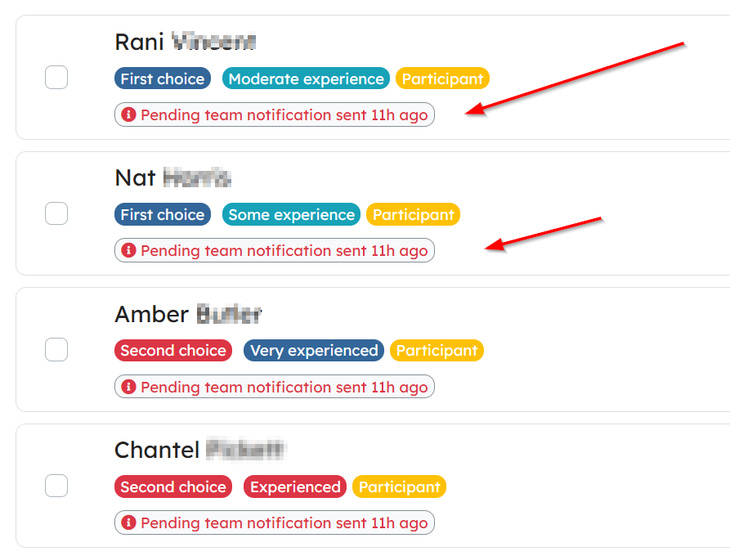
When you open the assignment offer or confirmation request form for a shift, volunteers who already have a pending notification for that team will show a "Pending team notification sent" badge with the date it was sent.
Selecting these volunteers won't trigger another email — they've already been contacted and can see all the team's shifts from the link in their original email.
When a new email will be sent
A new notification email will be sent to a volunteer for a team when:
- They have no existing notification for that team, or
- Their existing notification has expired (after 30 days), or
- Their existing notification is no longer pending (they've accepted, declined, or confirmed)
In all other cases, the notification is skipped to avoid sending duplicate emails.
Tips
- One offer per team is usually enough — Volunteers see all available shifts for the team when they open their dashboard, so you don't need to offer each shift individually.
- Check the badge before sending — The "Pending team notification sent" badge tells you a volunteer has already been contacted, so you can focus on volunteers who haven't.
- Wait for a response before re-sending — If a volunteer hasn't responded, their notification is still pending and a new one will be skipped. You'll need to wait for it to expire, or for them to act on it, before a new email can be sent.
Related articles
This guide walks you through the complete workflow of building and managing your volunteer roster
The Volunteer Management System provides a comprehensive solution for organising, managing, and coordinating volunteers for your events.
Learn how to organise volunteers into teams and roles, and manage team availability for your events.
Here's your 2-minute guide to smarter rostering - when to assign, how volunteers get notified, and why waiting 1-2 weeks before your event saves everyone time. Perfect for team leads!
Learn how to create shift schedules that automatically generate multiple volunteer shifts based on operating hours and shift duration.