Knowledge base
Auto-sender volunteer messages
Created on 14 Aug 2026, Updated 03 Sep 2026 04:15
Auto-sender volunteer messages
When new volunteers join a team or sign up to an event after you've already sent a message, they would normally miss out on the information you shared earlier. The auto-sender option solves this by automatically delivering a copy of your message to volunteers who become eligible later.
This is useful for:
- Onboarding information that every team member should receive, regardless of when they joined
- Broadcast announcements that new sign-ups still need to see
- Role instructions that apply to anyone joining a team
Auto-senders are available for team messages and event broadcasts.
How it works
When you send a message with the auto-sender option enabled:
- The message is sent to all currently eligible volunteers, just like a normal message.
- The thread is marked as an active auto-sender.
- A scheduled background task regularly checks for new volunteers who have become eligible since the message was sent (for example, someone was added to the team, confirmed a shift, or signed up to the event).
- Any newly eligible volunteers receive a copy of the original message automatically.
- The system keeps track of who has already received the message, so no one is sent it twice.
Auto-sending stops automatically when:
- The event has started
- The event has ended
- The message thread is closed or archived
You can also stop an auto-sender manually at any time without closing the thread.
Enabling the auto-sender
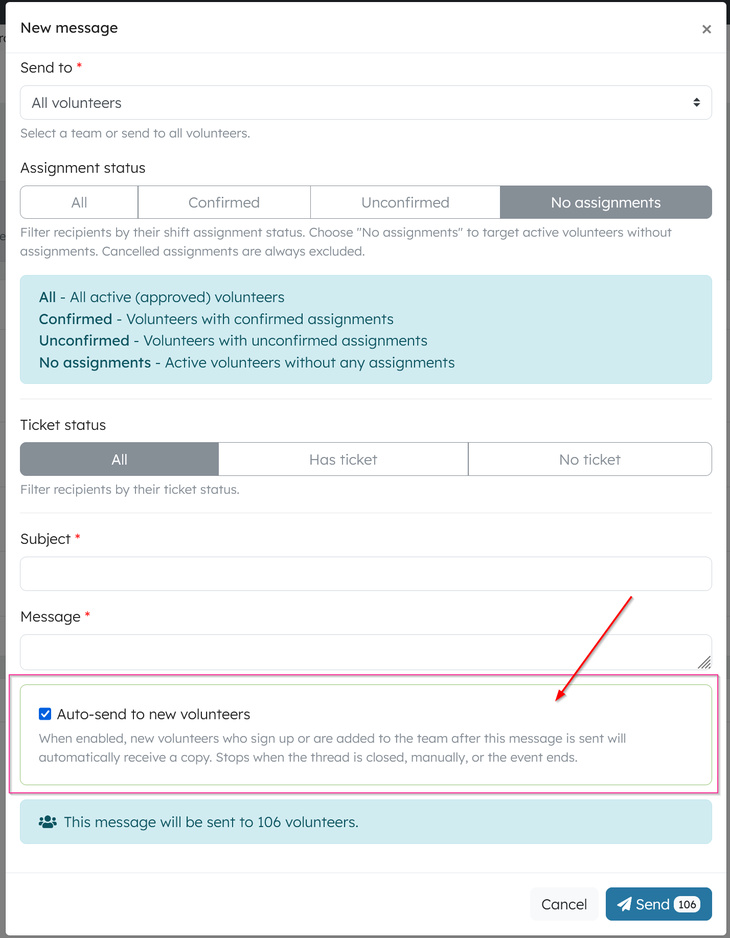
- Navigate to Volunteers → Messages within your event
- Click New message
- Choose your recipients:
- A specific team, or
- All volunteers (if you have broadcast permission)
- Apply any assignment status or ticket status filters as needed
- Tick Auto-sender
- Enter your subject and message
- Click Send
The assignment and ticket filters you choose are saved with the message and reused when the system looks for new recipients later. For example, if you send to Confirmed volunteers only, only newly confirmed volunteers will receive the auto-sent copy.
One active auto-sender per scope
To keep things simple and avoid sending multiple automatic messages to the same volunteers, only one auto-sender can be active at a time for each scope:
- One broadcast auto-sender per event
- One auto-sender per team
If you enable a new auto-sender for a scope that already has one, the previous auto-sender is automatically stopped. The original message thread stays open and visible — only the automatic sending is turned off.
Identifying an active auto-sender
Active auto-sender threads show an Auto-sender badge in the message list and on the thread page. This makes it easy to see which messages are still being delivered to new volunteers.

Stopping an auto-sender manually
You can stop an auto-sender while keeping the thread open for replies and review:
- Open the message thread
- Click Stop auto-sender
- Confirm your choice
The thread stays open and the conversation history is preserved, but no further automatic copies will be sent to new volunteers.
Example: onboarding a team
A team lead sends a welcome message to the Setup team with instructions for arrival, what to bring, and who to report to. They tick Auto-sender so anyone who joins the team later receives the same welcome.
- On Monday, the message is sent to the 5 volunteers currently on the Setup team.
- On Wednesday, a new volunteer is added to the Setup team. They automatically receive a copy of the welcome message.
- On Friday, another volunteer confirms their shift on the Setup team. They also receive a copy.
- On the day of the event, auto-sending stops automatically — no further copies are sent.
Example: event-wide broadcast
An organiser sends a broadcast to All volunteers with key event details and a link to the volunteer portal. They tick Auto-sender so anyone who signs up after the broadcast still receives the information.
- The broadcast goes out to 80 volunteers.
- Over the next week, 12 more volunteers sign up. Each one automatically receives a copy of the broadcast.
- Once the event ends, the auto-sender is disabled automatically.
Tips
- Use auto-senders for evergreen information — onboarding, role expectations, and key links are good candidates
- Avoid auto-senders for time-sensitive updates — if the information will be out of date by the time someone joins, send a normal message instead
- Check your filters before sending — the assignment and ticket status filters apply to both the initial send and all later automatic copies
- Stop the auto-sender when it's no longer needed — if you've sent a more up-to-date message, stop the old one to avoid confusion
- Only one auto-sender per scope — if you need a new auto-sender for the same team or event, the old one will be stopped automatically when you enable the new one
Related articles
This guide walks you through the complete workflow of building and managing your volunteer roster
The Volunteer Management System provides a comprehensive solution for organising, managing, and coordinating volunteers for your events.
Learn how to organise volunteers into teams and roles, and manage team availability for your events.
Here's your 2-minute guide to smarter rostering - when to assign, how volunteers get notified, and why waiting 1-2 weeks before your event saves everyone time. Perfect for team leads!
Learn how to create shift schedules that automatically generate multiple volunteer shifts based on operating hours and shift duration.